Microsoft Copilot tutorial
How to make AI images for free with Microsoft Copilot
 SayScreen
This whole video was made by AI.
Make your own at sayscreen.com
$1 for 7 days, then $49/month
- 1:44 video
- 4 steps
- Last verified November 21, 2026
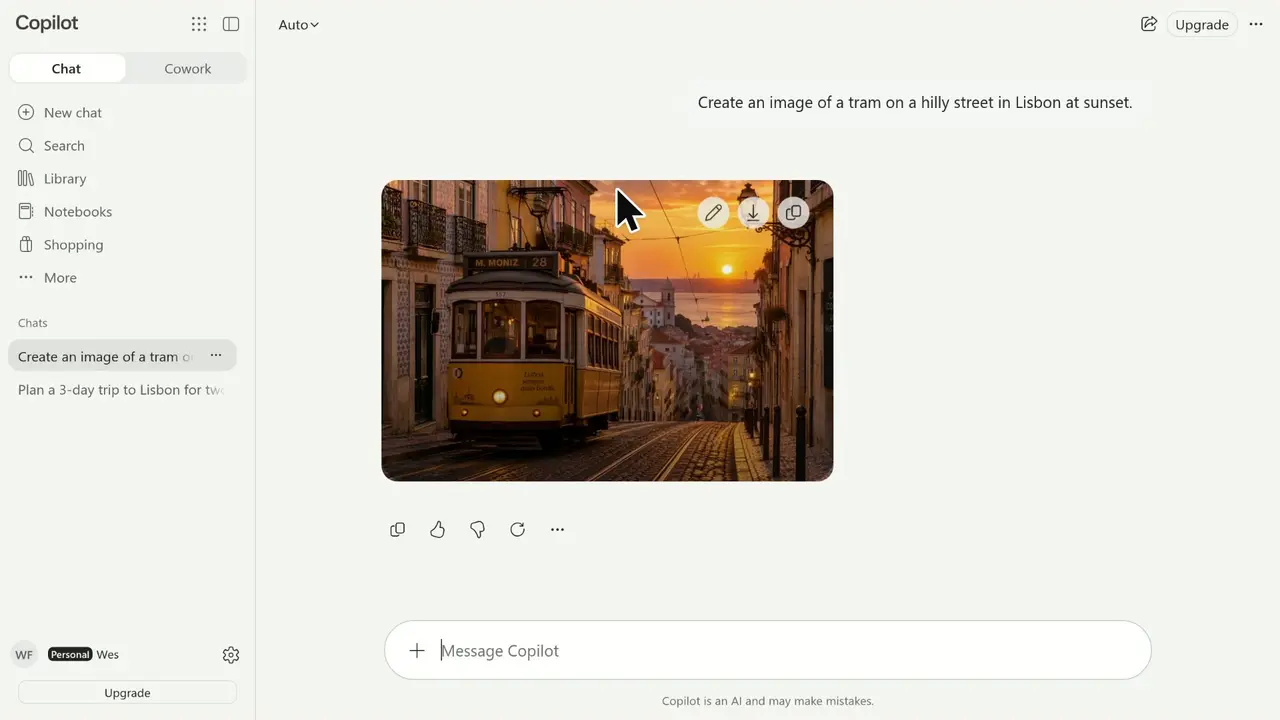
Copilot draws a picture from a sentence typed in the same box you chat in. This video asks for a cozy cabin in a snowy forest at night, then replies in the same chat to make it look like a watercolor painting, and Copilot paints the cabin scene again as a watercolor. Next it asks for a lighthouse on a rocky coast at sunset, which comes out painted too, since it's the same chat, and clicks Download on the buttons that show up when you point at the picture. It was recorded at copilot.com, signed in with a personal Microsoft account. Making images is free in Copilot, and Microsoft's paid plans give you more of it.
Steps
- Describe the picture in the message box and send itSay you want a picture, for example Create an image of, then describe it. Here it asks for a cozy cabin in a snowy forest at night. A gray box shows while Copilot works, then the finished picture appears.
- Reply in the same chat to change the styleHere: Make it look like a watercolor painting. Copilot paints the cabin scene again as a watercolor.
- Ask for a new pictureHere: Now create a new image of a lighthouse on a rocky coast at sunset. It came out in watercolor too, carried over from earlier in the chat.
- Point at the picture and click DownloadThe buttons show up on the picture when you point at it.
Transcript
0:00Microsoft Copilot can turn a simple description into an AI image, for free. Let's create one, restyle it, make another, and then download it.
0:10Just describe what you want in the message box, starting with "Create an image of", so Copilot knows to draw it. Copilot gets to work right away, and the picture slowly comes into focus as it's drawn. This usually takes just a few seconds. And here it is: a snow-covered cabin with warm, glowing windows under a bright moon. Not bad for one sentence.
0:36To change the style, just reply in the same chat. Let's ask Copilot to make it look like a watercolor painting. Copilot remembers what we were working on, so it repaints the same cabin scene with soft watercolor textures.
0:54Want something completely different? Ask for a new image, like a lighthouse on a rocky coast at sunset. Here's our sunset lighthouse. Notice it kept the watercolor look, since it's the same chat. Start a new chat whenever you want a fresh style.
1:12To save an image, move your pointer over it to reveal its options. Click the Download button and the picture saves straight to your computer. Next to it, Copy image lets you paste it anywhere. That's how you create, restyle and download free AI images with Microsoft Copilot, using nothing but plain words.
Microsoft Copilot is a trademark of its owner. SayScreen isn't affiliated with, sponsored or endorsed by Microsoft Copilot; this video shows the public app as it looked when it was recorded, and we last checked the steps on November 21, 2026. If Microsoft Copilot has changed since, tell us at hey@sayscreen.com. Microsoft Copilot's own guide: support.microsoft.com/en-us/microsoft-copilot/using-image-generation-in-microsoft-copilot.