Canva tutorial
How to curve text in Canva
Canva's Curve effect bends a line of text into an arch or a smile, and it works on the free plan. This video adds a heading to a blank presentation, curves it with Effects, then flips the curve with a negative number.
- 1:08 video
- 7 steps
- Last verified October 28, 2026
Steps
- Open the Text panel in the left sidebar
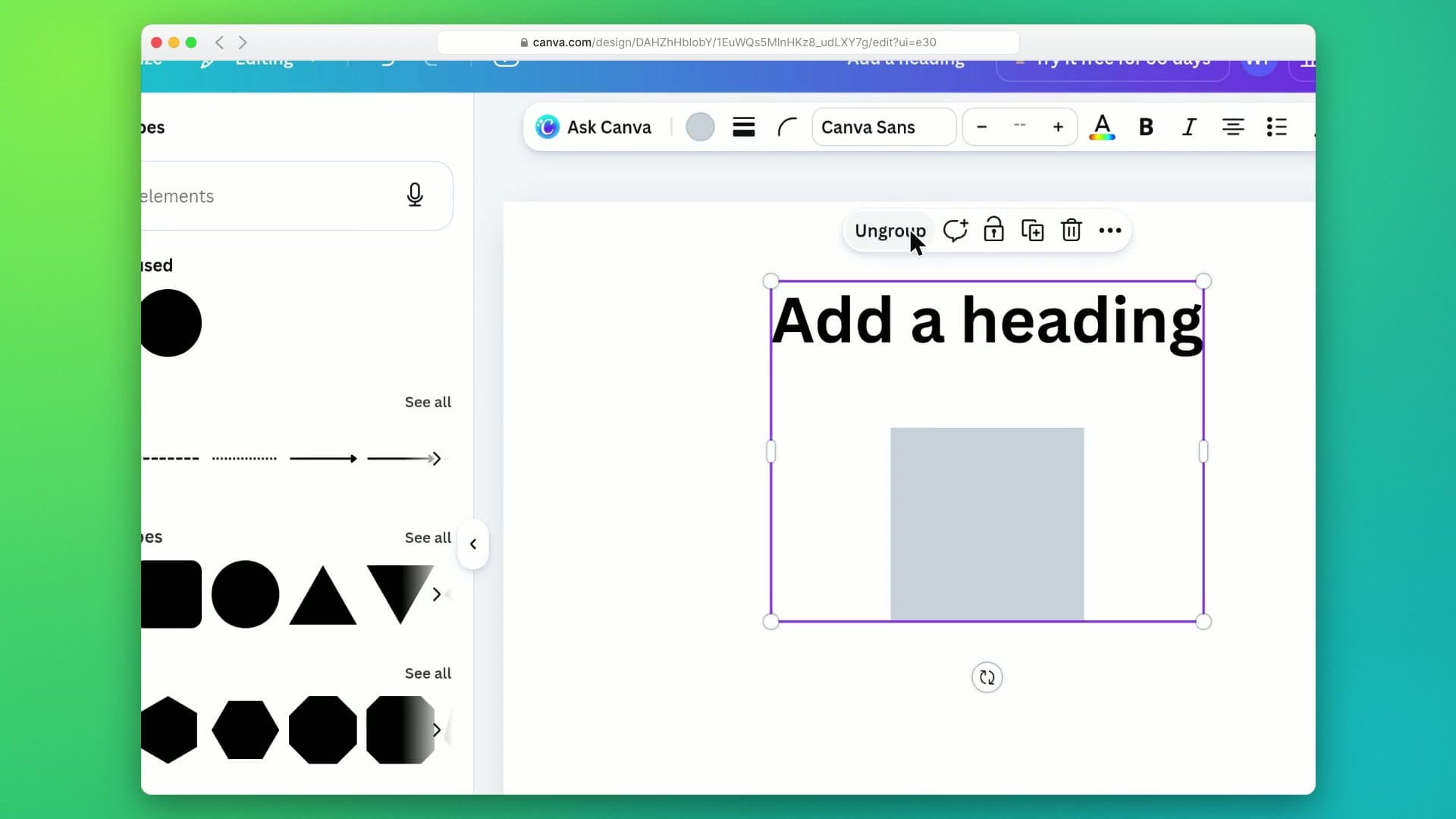
- Click Add a headingCanva puts the new heading in the middle of the page, already selected.
- Click Effects in the toolbar above the designThe toolbar shows Effects while the heading is selected.
- Choose Curve under ShapeThe heading bends into an arch straight away.
- Drag the Curve slider to the right for a stronger archIt's just below the Shape options (scroll the panel if you can't see it). Higher numbers make a tighter circle; the video goes to 96. You can also type a number in the box beside the slider.
- Drag the slider below zero to curve the text the other wayNegative numbers bend the text down, like a smile. The video stops at -66.
- Click an empty spot to see the resultClicking away deselects the heading, so you see the curve without the selection box.
Transcript
0:00Curved text is a quick way to make titles, badges and logos stand out. Let's add a heading in Canva and bend it into an arch.
0:09Start by opening the Text panel in the left sidebar.
0:13Click Add a heading, and Canva drops a new heading right in the middle of your slide.
0:19With the heading selected, open Effects in the toolbar above the design.
0:24Down under Shape, choose Curve and watch the heading bend into an arch.
0:29Scroll down a little to reveal the Curve settings. Drag the Curve slider to the right to make the arch stronger. The higher the number, the tighter the circle.
0:41Slide it back past zero into negative numbers, and the text curves the other way, like a smile instead of a rainbow.
0:48Finally, click an empty spot on the slide to deselect it and see your curved heading on its own. And that's curved text in Canva: add a heading, open Effects, pick Curve, then use the slider to bend it either way. Next, try it on a circular logo or badge.
Canva is a trademark of its owner. SayScreen isn't affiliated with, sponsored or endorsed by Canva; this video shows the public app as it looked when it was recorded, and we last checked the steps on October 28, 2026. If Canva has changed since, tell us at hey@sayscreen.com. Canva's own guide: www.canva.com/help/text-effects/.