Canva tutorial
How to group elements in Canva
Grouping makes several Canva elements move as one, and you can still adjust any one of them without breaking the group. This video groups a heading and a square on a blank page, moves them together, moves the heading on its own, then ungroups them.
- 1:29 video
- 8 steps
- Last verified October 30, 2026
Steps
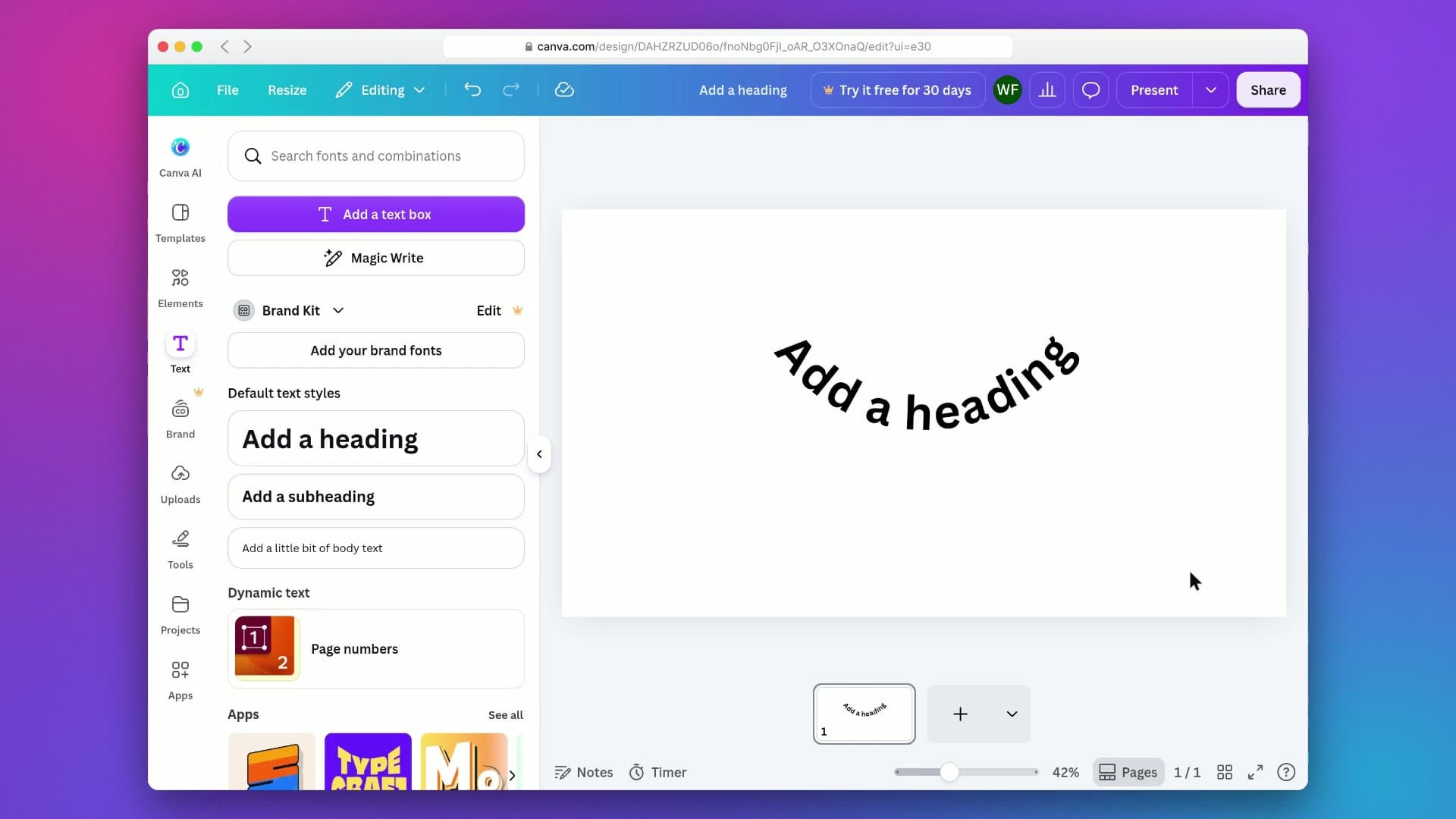
- Open the Text panel and click Add a heading
- Open Elements, then Shapes, and click the squareNew elements land mid-page, so the video moves the heading up first, off camera.
- Drag a selection box across both elementsOr hold Shift and click each element.
- Click Group in the floating toolbarOr press Ctrl+G (Command+G on a Mac). Sheets and content from third-party apps can't be grouped.
- Drag the group to move both together
- Click one element inside the group, then drag itOnly that element moves, and the group stays intact. You can also resize or rotate it.
- Click any part of the group, then click UngroupOr press Ctrl+Shift+G (Command+Shift+G on a Mac). With one element selected, Ungroup removes only that one, so click an empty spot first.
- Click an empty spot to clear the selection
Transcript
0:00Grouping in Canva lets you move several elements together as one. Let's add two things to the page, group them, and then ungroup them again.
0:09First, open the Text panel to grab a heading.
0:13Click Add a heading and it drops right onto the page.
0:16Next, head to Elements for a simple shape.
0:20Open Shapes to see the basic shapes.
0:23Click the square and now there are two elements on the page.
0:27To select both, drag a selection box from an empty spot so it covers the heading and the square.
0:34With both selected, click Group in the floating toolbar to combine them into a single unit.
0:40Now drag the group and you'll see the heading and square travel together.
0:44With the group selected, click the heading to pick just that one element inside it.
0:50Drag it a little and only the heading moves, while the dotted outline shows it's still part of the group.
0:56To take them apart, click once on any part of the group to select the whole thing.
1:02Then click Ungroup and the heading and square become separate elements again.
1:07The toolbar shows Group again, so they're two separate elements. Click an empty spot to clear the selection. That's how grouping works in Canva. Select your elements, group them so they move as one, adjust single items inside the group whenever you need to, and ungroup when you're done. Try grouping a logo with its tagline next.
Canva is a trademark of its owner. SayScreen isn't affiliated with, sponsored or endorsed by Canva; this video shows the public app as it looked when it was recorded, and we last checked the steps on October 30, 2026. If Canva has changed since, tell us at hey@sayscreen.com. Canva's own guide: www.canva.com/help/layer-group-align/.