Gemini tutorial
How to use Gemini for beginners
 SayScreen
This whole video was made by AI.
Make your own at sayscreen.com
$1 for 7 days, then $49/month
- 5:53 video
- 12 steps
- Last verified November 21, 2026
Gemini is Google's AI assistant, and this tour covers what a beginner needs: the sidebar with New chat, Library, Images, notebooks and your saved chats, the model picker, and the plus menu's uploads and tools. It plans a 3-day weekend trip to Lisbon on a moderate budget, follows up to make it a relaxed trip for a couple in October, and shows what the menus under an answer and at the top of a chat do. Then it makes a watercolor picture of a Lisbon tram with Create image, opens a temporary chat for one-off questions and looks through Settings. It was recorded at gemini.google.com on a free account.
Steps
- Leave the model picker on AutoAuto adapts to your needs. Deeper analysis is locked on a free account. Under the box you can switch between Chat and Task.
- Click the plus button to see uploads and toolsUpload files or add them from Google Drive. Create image is here too, and More tools holds Create music, Canvas, Deep research, Guided learning and Personal Intelligence.
- Type your request in plain words and send itHere: Plan a 3-day weekend trip to Lisbon on a moderate budget. Gemini answered with a budget table and an itinerary, with the places on a Google map.
- Close the map and scroll through the answerGemini is AI and can make mistakes, so check prices, dates and facts that matter.
- Open the three-dot menu under the answerThe buttons beside it rate, redo or copy the answer. The menu has Listen, Export to Docs, Draft in Gmail and Branch in new chat.
- Ask a follow-up in the same chatHere: Make it a relaxed trip for a couple in October. The new answer builds on the first one.
- Open the conversation menu at the top rightShare conversation makes a public link, so share only chats without private details. You can also pin or rename the chat, download a PDF, export it to Docs, add it to a notebook or delete it.
- Start a new chat, then choose Create image from the plus menuImage mode shows ready-made styles, with Aspect ratio and Format under the box.
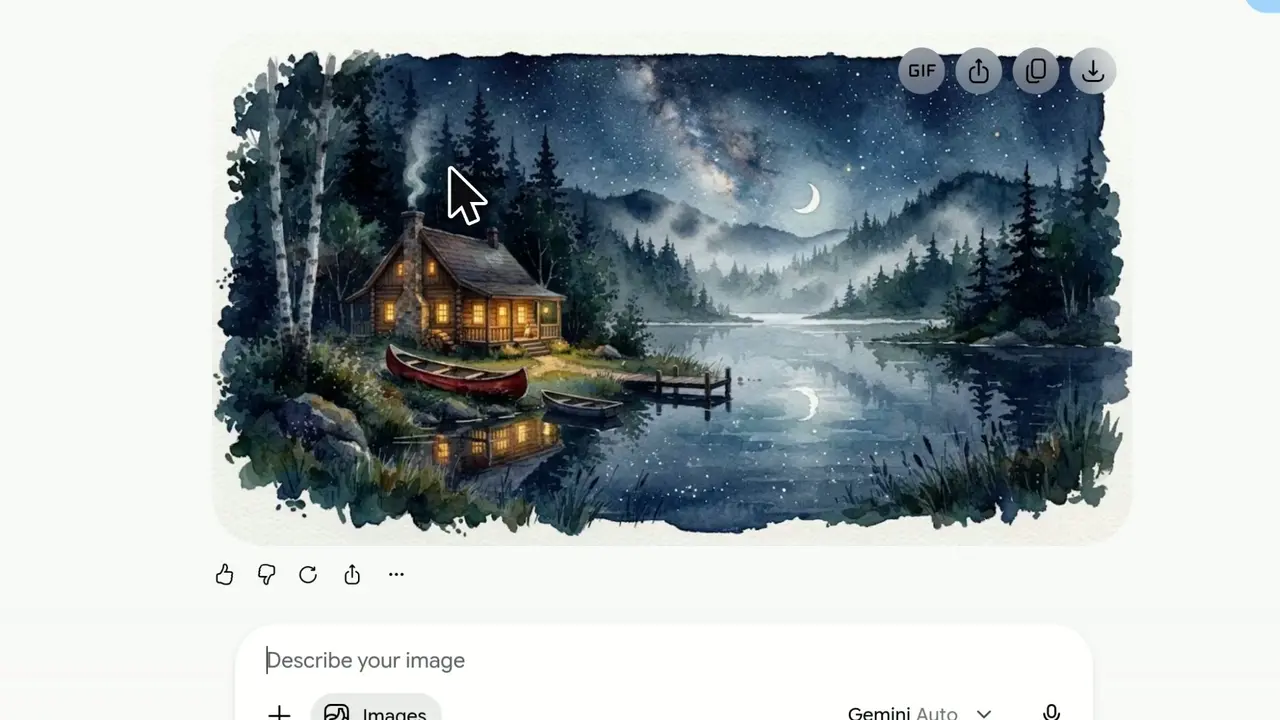
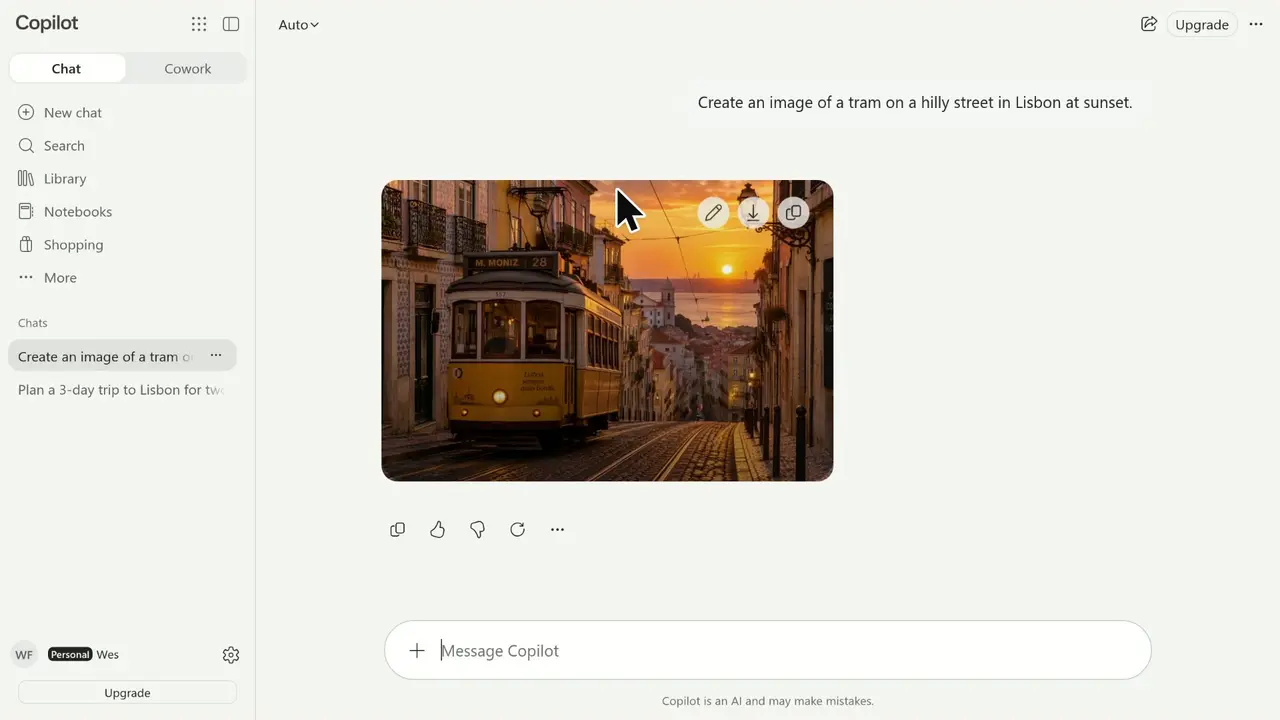
- Describe the picture and send itHere: A yellow tram climbing a sunny Lisbon street, watercolor style. The buttons on the finished picture animate, share, copy or download it.
- Start a new chat and turn on temporary chatThe button is at the top right. Gemini says temporary chats don't appear in your recent chats, aren't used to improve Google AI and are stored for 72 hours for safety.
- Click the X to go back to regular chats
- Click the gear icon to open SettingsUsage limits shows how much of each feature your plan allows, Gems are custom assistants with your own instructions, and Your public links lists the chats you've shared.
Transcript
0:00This is Gemini, Google's AI assistant. In this tour you'll learn how to chat with it, use its built-in tools, and the key things every beginner should know. On the left is the sidebar. New chat starts a fresh conversation, Library gathers files and media you've made, and Images collects your generated pictures. Notebooks let you group related chats and sources around one topic. Below, your past chats are saved automatically, and the magnifier searches them.
0:33Before typing, look at the prompt bar. The model picker is set to Auto, which adapts to your request; Deeper analysis is for tougher problems and needs a paid plan. For everyday use, Auto is the right choice, so we'll keep it. Chat mode is for back-and-forth conversation, while Task mode hands Gemini a multi-step job to work through. And the microphone lets you dictate instead of typing.
1:01The plus button opens uploads and tools. You can attach documents, images or code, or pull in files straight from Google Drive. Below are creative tools: Create image, and Create video, which is locked on this plan. More tools reveals even more. Canvas opens a side-by-side space for drafting documents or code. Deep research browses many sources and writes a detailed report, and Guided learning teaches a topic step by step. Create music composes short tracks, and Personal Intelligence lets Gemini draw on your connected Google apps for more personal answers. You can switch it off anytime.
1:46Let's try a plain chat first. Ask in everyday language, with details: plan a three-day weekend trip to Lisbon on a moderate budget. Hit send, or just press Enter, and Gemini starts writing its answer. Here's the answer: a short summary, then a budget table and itinerary. Because it's a trip, Gemini also pulled in a Google Map with the places it mentions. One key thing to remember: Gemini is AI and can make mistakes. Always double-check prices, dates, and facts that matter before relying on them.
2:25Close the map panel to give the answer more room. Scrolling down, you'll find the full day-by-day itinerary and practical money-saving tips. Under every answer is a toolbar. Rate the response to help improve Gemini, Redo to get a fresh version, and Copy to paste it anywhere.
2:46The three-dot menu holds extra actions for this response. You can have the answer read aloud, export it to Google Docs, draft it in Gmail, or branch into a new chat to explore a different direction.
3:00Gemini remembers the conversation, so you can simply follow up: make it a relaxed trip for a couple in October. The new answer builds on the first one, now with a budget for a couple, a relaxed itinerary, and tips for visiting in October.
3:22Up in the corner, the conversation menu lets you manage the whole chat. Share creates a public link, so only share chats without private details. You can also pin or rename it, download a PDF, add it to a notebook, or delete it.
3:39Now let's try a creative tool. Start a new chat so each topic stays neatly organized in your history. Open the plus menu again. Choose Create image to tell Gemini you want a picture rather than text. Image mode shows ready-made styles for inspiration, plus aspect ratio and format options. You can also simply describe what you want.
4:04Describe the subject and style: a yellow tram climbing a sunny Lisbon street, in watercolor. In moments, there's the painting. Use the buttons on top to animate it, copy it, or download it at full size. Images made by Gemini carry an invisible AI watermark.
4:26Next, a privacy essential. Head back to a new chat. This icon turns on temporary chat. Use it for one-off or sensitive questions you don't want kept in your history. Temporary chats don't appear in your recent chats and aren't used to improve Google AI, though they're kept for 72 hours for safety.
4:49Click the X to switch back to regular chats. Handy tip: typing the at sign in the prompt box lets you pull in connected apps and skills, like your Google apps.
5:01Finally, the gear icon opens Settings, where you control how Gemini works for you. Usage limits shows how much of each feature your plan allows. Gems are custom assistants you set up once with your own instructions, and Personal Intelligence controls what Gemini can learn from you. Under Data and privacy, Your public links lists every chat you've shared, so you can revoke them, and Help covers privacy and support. You now know how to chat with Gemini, follow up, use its tools to create images, manage and share chats, keep things private with temporary chat, and find your settings.
Gemini is a trademark of its owner. SayScreen isn't affiliated with, sponsored or endorsed by Gemini; this video shows the public app as it looked when it was recorded, and we last checked the steps on November 21, 2026. If Gemini has changed since, tell us at hey@sayscreen.com. Gemini's own guide: support.google.com/gemini/answer/13275745.