GitHub tutorial
How to compare two branches on GitHub
 SayScreen
This whole video was made by AI.
Make your own at sayscreen.com
$1 for 7 days, then $49/month
- 4:09 video
- 20 steps
- Last verified November 26, 2026
GitHub’s compare view shows everything one branch has that another doesn’t: its commits, the files they change and a line-by-line diff. This video creates a private repository called compare-demo with a README, makes a feature-update branch, commits a small edit to its README, then opens Comparing changes from the branch’s “1 commit ahead of main” link and reads it in unified and split views. It stops there, without opening a pull request.
Steps
- Click + in the top bar, then New repository
- Name the repositorycompare-demo here. A green check shows the name is free.
- Turn on Add READMESo the repository starts with a file to change.
- Set the visibility to PrivateIt starts on Public. Comparing branches works the same either way.
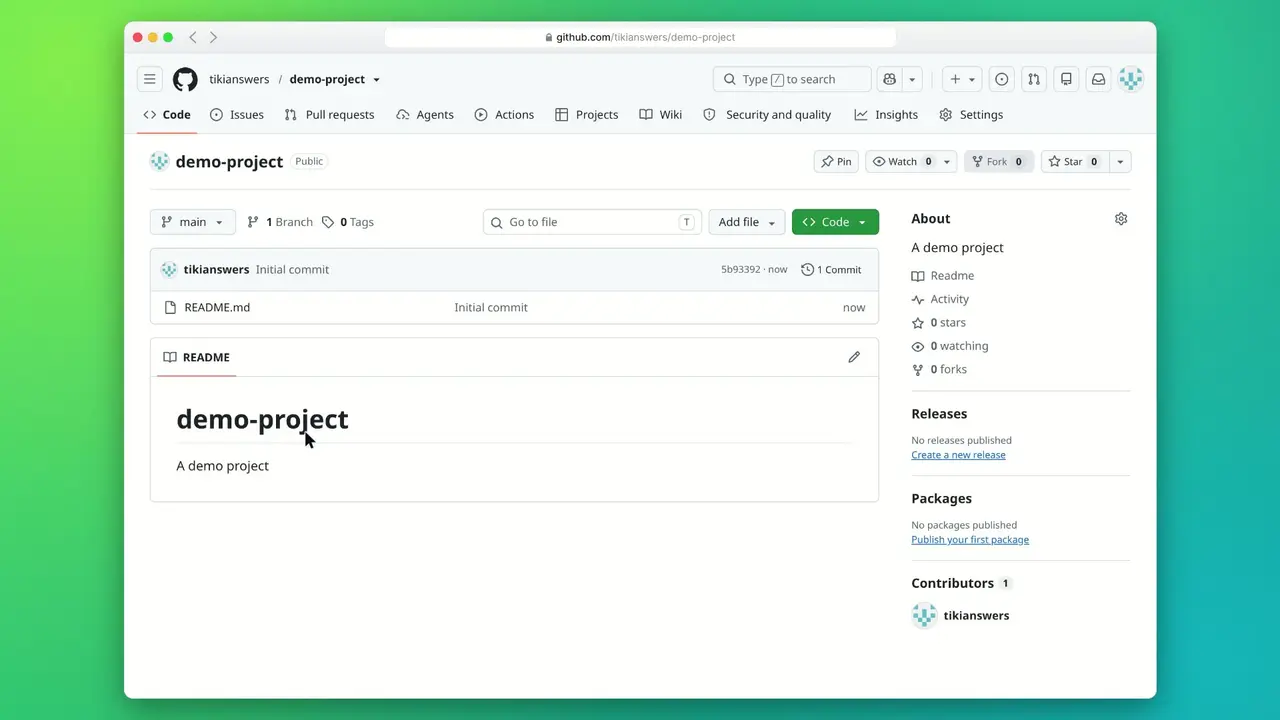
- Click Create repositoryAt the bottom of the form. The new repository has one branch, main.
- Open the branch menu above the file listIt shows main.
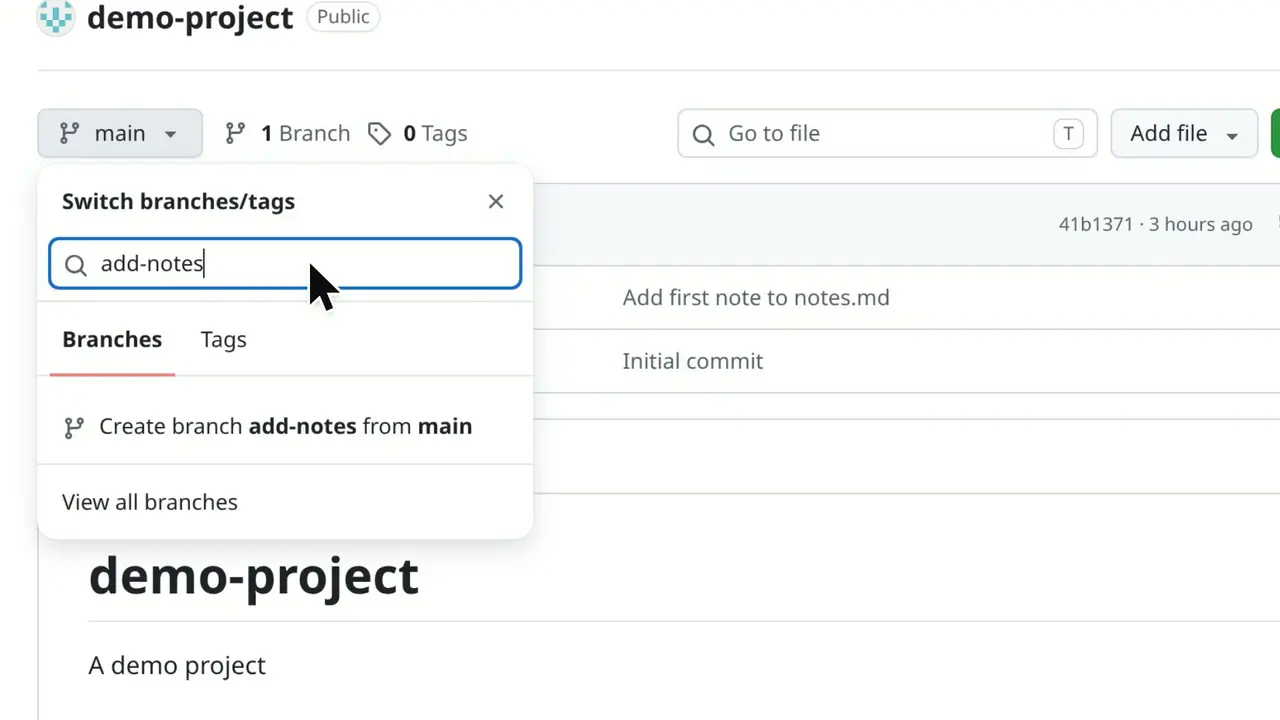
- Type a name for the new branchfeature-update here, in Find or create a branch.
- Click Create branch feature-update from mainYou’re now on the new branch, up to date with main.
- Click the pencil icon to edit the README
- Add a line below the titleHere: This line was added on the feature-update branch.
- Click Commit changes
- Type a commit messageGitHub suggests one. This video uses Add a note to the README.
- Keep Commit directly to the feature-update branch and click Commit changes
- Click compare-demo to go back to the repository pageThe banner now says the branch is 1 commit ahead of main.
- Click 1 commit ahead of mainIt opens Comparing changes.
- Check the base and compare branchesBase is main, the branch you compare against. Compare is feature-update, the one with the new work. Able to merge means they can be merged automatically.
- Read the summary bar1 commit, 1 file changed and 1 contributor.
- Review the commits main doesn’t have
- Read the diffGreen lines marked + were added, red lines marked - were removed. The title shows as removed and added again because a line break was added after it.
- Click Split for a side-by-side diffmain is on the left, feature-update on the right.
Transcript
0:00In this video, you'll learn how to compare two branches on GitHub. We'll create a fresh repository, add a branch with a small change, and then see exactly what differs from main.
0:12First, open the Create new menu in the top bar. Choose New repository to start a fresh project for this demo.
0:21Name the repository compare-demo.
0:25Turn on Add README so the repository starts with a file we can edit later.
0:30Since this is just a demo, open the visibility menu and keep it private. Pick Private. Branch comparison works the same either way.
0:40Scroll down to the bottom of the form, where the create button lives. Click Create repository, and GitHub sets it up with a single main branch. Here's our new repository. It has one branch, main, and a README file to work with.
0:56To make a new branch, open the branch menu above the file list.
1:01Type the new branch name, feature-update.
1:06Since no branch has that name yet, GitHub offers to create it from main. Click it. We're now on feature-update. The banner confirms this branch is up to date with main, since we haven't changed anything yet.
1:21Let's make a small change. Click the pencil icon to edit the README right in the browser.
1:27Below the title, add a new line: This line was added on the feature-update branch.
1:35Notice the edit is happening on feature-update, not main. Click Commit changes to save it.
1:43Give the commit a short message, like Add a note to the README.
1:49Keep Commit directly to the feature-update branch selected, then click Commit changes. The commit is saved, and the README on feature-update now shows our new line. Main still has the original version.
2:05Head back to the repository's main view for this branch. The banner has updated: this branch is now one commit ahead of main. That's our cue that the two branches differ.
2:18Click the one commit ahead link to open GitHub's compare view.
2:22This is the Comparing changes page. It shows everything feature-update has that main doesn't. Base is the branch you're comparing against, main. Compare is the branch with the new work, feature-update. And GitHub reports they're able to merge without conflicts.
2:41This summary bar sums it up: one commit, one file changed, and one contributor.
2:48Below it, the commit list shows each commit on feature-update that main doesn't have yet. Here, that's just our Add a note to the README commit.
2:58At the bottom is the diff for README.md. Lines in green, marked with a plus, were added on feature-update; lines in red, marked with a minus, were removed. The title line shows as removed and re-added only because a line break was added after it. The real change is our new sentence, which is why GitHub counts three additions and one deletion.
3:23For a side-by-side view, switch to Split: main is on the left, feature-update on the right. Now main's original README sits on the left, and feature-update's version, with the new sentence highlighted in green, sits on the right. From here, you could open a pull request to merge these changes into main, but the comparison on its own already lets you review exactly what's different. And that's it: you created a branch, committed a change, and used GitHub's compare view to see exactly how feature-update differs from main.
GitHub is a trademark of its owner. SayScreen isn't affiliated with, sponsored or endorsed by GitHub; this video shows the public app as it looked when it was recorded, and we last checked the steps on November 26, 2026. If GitHub has changed since, tell us at hey@sayscreen.com. GitHub's own guide: docs.github.com/en/pull-requests/how-tos/commit-changes/comparing-commits.