Gmail tutorial
How to delete all emails from one sender in Gmail
 SayScreen
This whole video was made by AI.
Make your own at sayscreen.com
$1 for 7 days, then $49/month
- 1:34 video
- 6 steps
- Last verified November 18, 2026
Gmail can find every email from one sender with a right-click, so you can clear out a newsletter or a noisy sender without scrolling through your inbox. This video right-clicks an email from Lenny's Newsletter and chooses Find emails from Lenny's Newsletter, which searches all your mail for that sender. Ticking the select box only takes the conversations on the page, so it then clicks Select all conversations that match this search, deletes them and confirms. The same steps mass delete any search. With many emails, Gmail takes a few minutes to move them all, and the video skips ahead to the empty search. Deleted emails stay in Trash for 30 days, so you can still get them back until then.
Steps
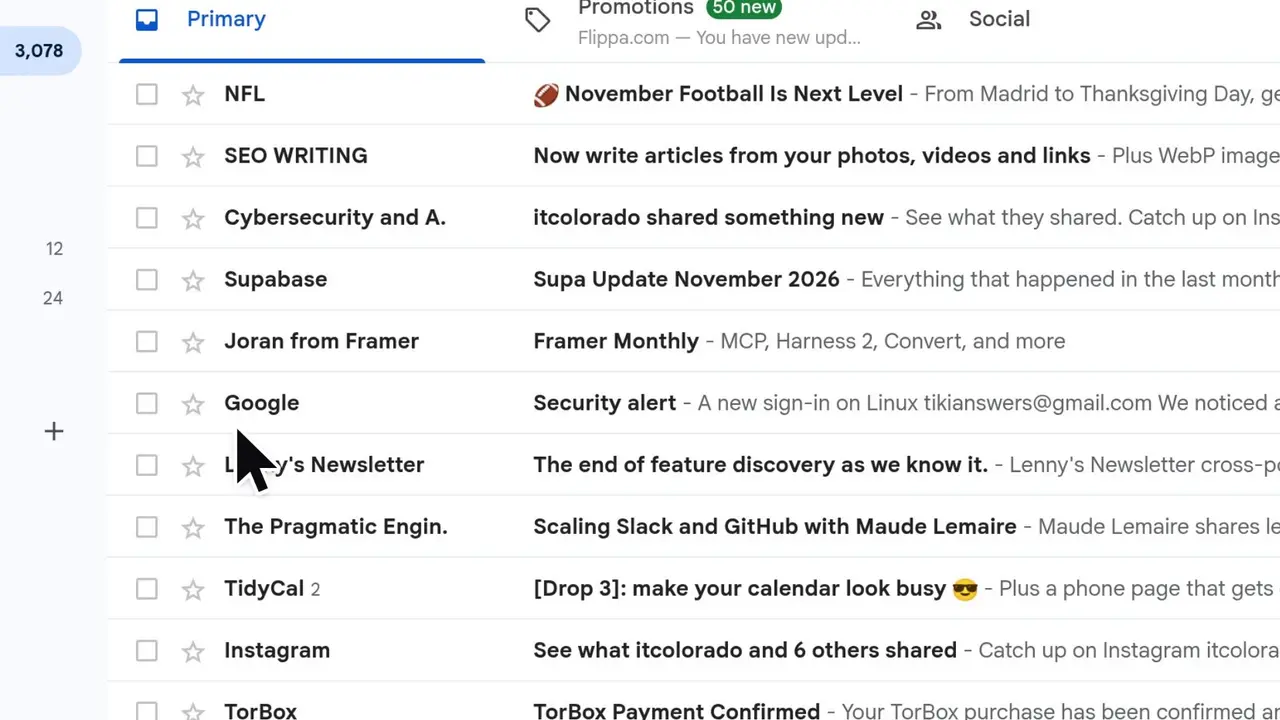
- Right-click any email from the senderGmail opens a menu of quick actions for that email.
- Choose Find emails from, followed by the sender's nameGmail searches all your mail for that sender, so the search box reads from: and their address (here from:lenny@substack.com). You can also type that search yourself.
- Tick the select box above the listThis selects the conversations on this page (50 by default).
- Click Select all conversations that match this searchThe link appears above the list once the page is selected, and it takes in every email from the sender, not just this page. Whole conversations go, including any replies in them.
- Click Delete in the toolbarDelete is the trash can above the list.
- Click OK to confirmGmail asks first because the action touches every conversation in the search. The emails go to Trash, where they stay for 30 days before Gmail deletes them for good.
Transcript
0:00Got a sender filling up your inbox? Let's clear out every email from Lenny's Newsletter in just a few clicks.
0:07Find any email from that sender and right-click it to open Gmail's quick actions menu.
0:13Choose Find emails from Lenny's Newsletter. Gmail searches your whole mailbox for that sender, not just this page. The search box now reads from lenny at substack dot com, so every result here comes from that one sender.
0:30Tick the select all checkbox at the top of the list to select every email on this page.
0:36That only covers the first fifty, though. Click Select all conversations that match this search to grab every last one from this sender.
0:46With everything selected, hit the Delete button to send them all to the trash.
0:51Gmail asks you to confirm, since this touches every conversation in the search. Click OK to go ahead. Gmail moves the first batch to the trash right away, and it finishes the rest in the background over the next few minutes. A couple of minutes later, the search comes back empty. Every email from Lenny's Newsletter is now in your trash. That's it: find emails from a sender, select every matching conversation, and delete them all in one go.
Gmail is a trademark of its owner. SayScreen isn't affiliated with, sponsored or endorsed by Gmail; this video shows the public app as it looked when it was recorded, and we last checked the steps on November 18, 2026. If Gmail has changed since, tell us at hey@sayscreen.com. Gmail's own guide: support.google.com/mail/answer/7401.