Gmail tutorial
How to create a filter in Gmail
 SayScreen
This whole video was made by AI.
Make your own at sayscreen.com
$1 for 7 days, then $49/month
- 2:22 video
- 8 steps
- Last verified November 13, 2026
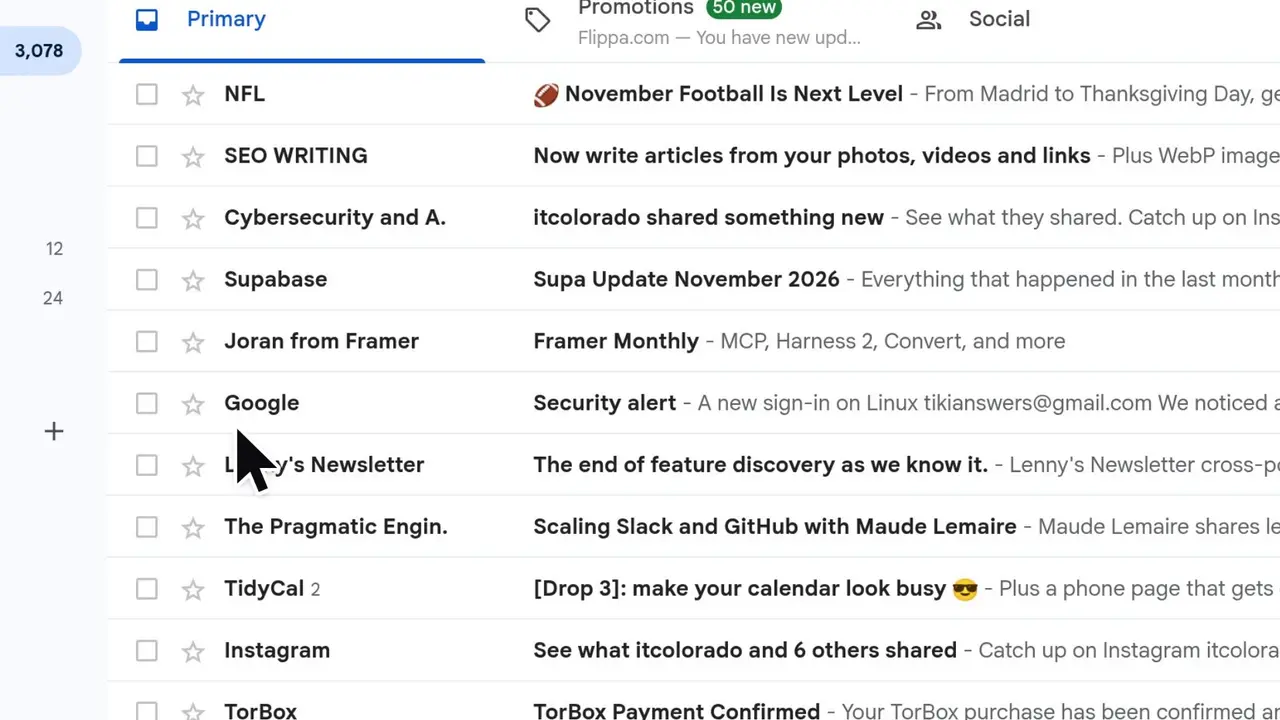
A Gmail filter acts on email as it arrives, so newsletters can skip your inbox and wait under a label of their own. This video starts from the search options, catches mail from one sender, ticks Skip the Inbox and Apply the label, and makes a Newsletters label for it. Then it opens Settings, where the Filters and Blocked Addresses tab lists every filter with links to edit or delete it.
Steps
- Click the search options icon in the search barIt's at the right end of the search bar and opens Gmail's detailed search form.
- Type the sender's address in FromThis video catches mail from news@example.com.
- Click Create filter instead of SearchGmail lists every action a filter can take.
- Tick Skip the Inbox (Archive it)Matching emails are archived instead of landing in your inbox.
- Tick Apply the label and make a label called NewslettersOpen Choose label..., pick New label..., type Newsletters and click Create. The new label is chosen for the filter and shows up in your sidebar.
- Click Create filter to save itGmail confirms that your filter was created. From now on, email from that sender skips the inbox and gets the Newsletters label. Also apply filter to matching conversations, left unticked here, would sort the emails you already have too.
- Open Settings and choose See all settingsClick the gear icon at the top right. Quick settings only covers the basics.
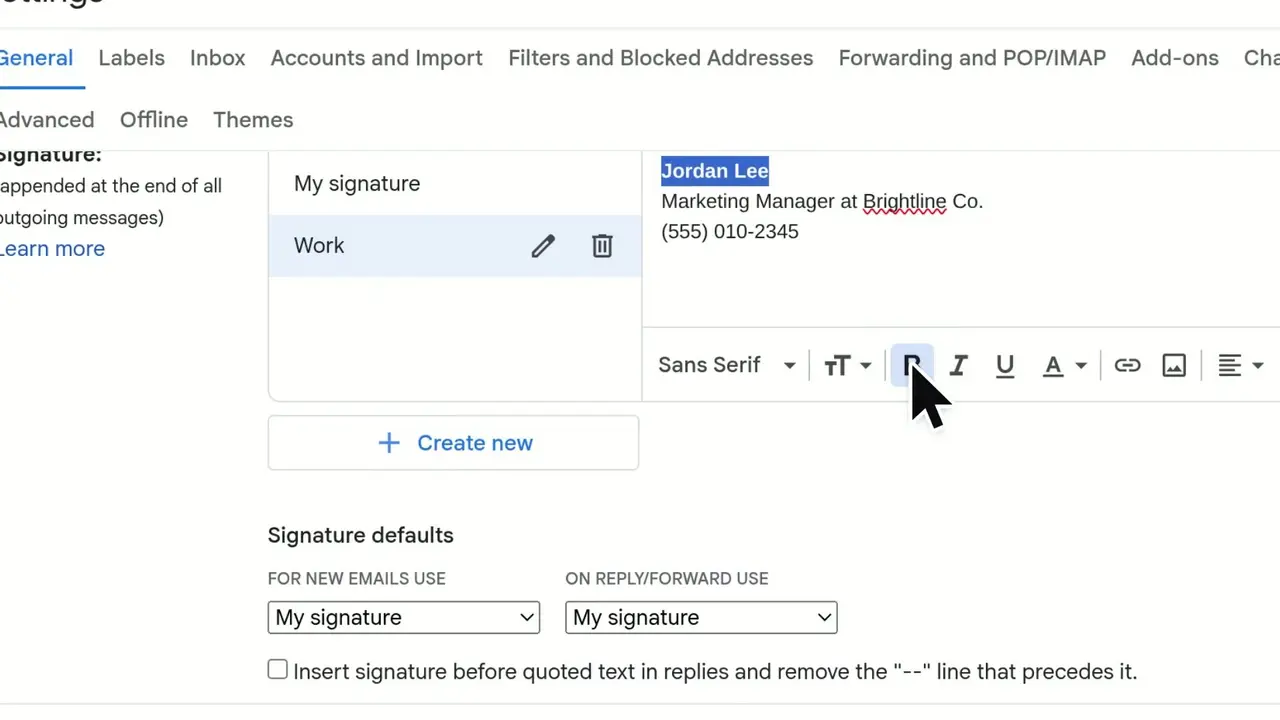
- Open the Filters and Blocked Addresses tabEvery filter you've made is listed with what it matches and what it does. Click edit to change it, or delete to remove it.
Transcript
0:00Tired of newsletters crowding your inbox? Let's build a Gmail filter that automatically labels them and moves them out of the inbox the moment they arrive.
0:09It all starts at the search bar. Click the search options icon on its right to open the detailed search form.
0:17In the From field, enter the sender you want to catch: news at example dot com.
0:24Instead of searching, click Create filter to decide what Gmail should do with these messages.
0:30This list holds every action a filter can take. Tick Skip the Inbox so matching emails are archived instead of landing in your inbox.
0:40Archived mail is easy to lose track of, so also tick Apply the label to give these emails a home of their own. Open the label menu to pick which label they get. Your existing labels show up here, but let's make a fresh one. Choose New label. Name the label Newsletters. Click Create, and the new label is selected for the filter right away. The Newsletters label also appears in your sidebar, so you can open it anytime to read what the filter has collected.
1:14With both actions ticked, click Create filter. From now on, every email from this sender skips the inbox and gets the Newsletters label. Gmail confirms that your filter was created.
1:28To find it later, open Settings with the gear icon. Quick settings only covers the basics, so choose See all settings.
1:39Then switch to the Filters and Blocked Addresses tab, where every filter you've made is listed. Here's our new filter. It matches mail from news at example dot com, and it skips the inbox and applies the Newsletters label. To change it later, click edit, which reopens the same options you just set. And if you no longer need it, delete removes the filter. You've made a Gmail filter that labels newsletters and moves them out of your inbox, and you know where to edit or delete it.
Gmail is a trademark of its owner. SayScreen isn't affiliated with, sponsored or endorsed by Gmail; this video shows the public app as it looked when it was recorded, and we last checked the steps on November 13, 2026. If Gmail has changed since, tell us at hey@sayscreen.com. Gmail's own guide: support.google.com/mail/answer/6579.