Google Docs tutorial
How to change margins in Google Docs
 SayScreen
This whole video was made by AI.
Make your own at sayscreen.com
$1 for 7 days, then $49/month
- 2:10 video
- 8 steps
- Last verified November 17, 2026
Margins are the blank space between your text and the edges of the page. This tutorial types a title and a short paragraph in a new Google Doc, where every margin starts at 1 inch. Then it opens File, Page setup and changes the Top, Bottom, Left and Right margins to 0.5 inch, so the text starts closer to the edges of the page and the paragraph fits on fewer lines. To undo the change, it opens Page setup again and sets all four back to 1. Apply to stays on Whole document, so the new margins cover every page. Margins aren't available in pageless format. If your document is pageless, select Pages at the top of the Page setup window first.
Steps
- Type a title and a short paragraphIn a new Google Doc, type Quarterly Report and a few lines under it. With text on the page, it's easy to see where the margins are.
- Click File in the menu bar
- Choose Page setupIt's near the bottom of the File menu. Under Margins (inches) there are four boxes, Top, Bottom, Left and Right, each set to 1.
- Type 0.5 in Top, Bottom, Left and RightReplace the 1 in each box with 0.5, so every side gets a half-inch margin.
- Click OKThe text now starts closer to the edges of the page: the title sits higher and the paragraph fits on two lines.
- Open File, then Page setup againTo undo the change, go back to the same window.
- Type 1 in all four boxesSet Top, Bottom, Left and Right back to 1 for one-inch margins.
- Click OK to put the margins backThe text starts one inch from every edge of the page again.
Transcript
0:00Margins are the white space around the edges of your page. In this video, you'll learn how to change them in Google Docs, and how to set them back.
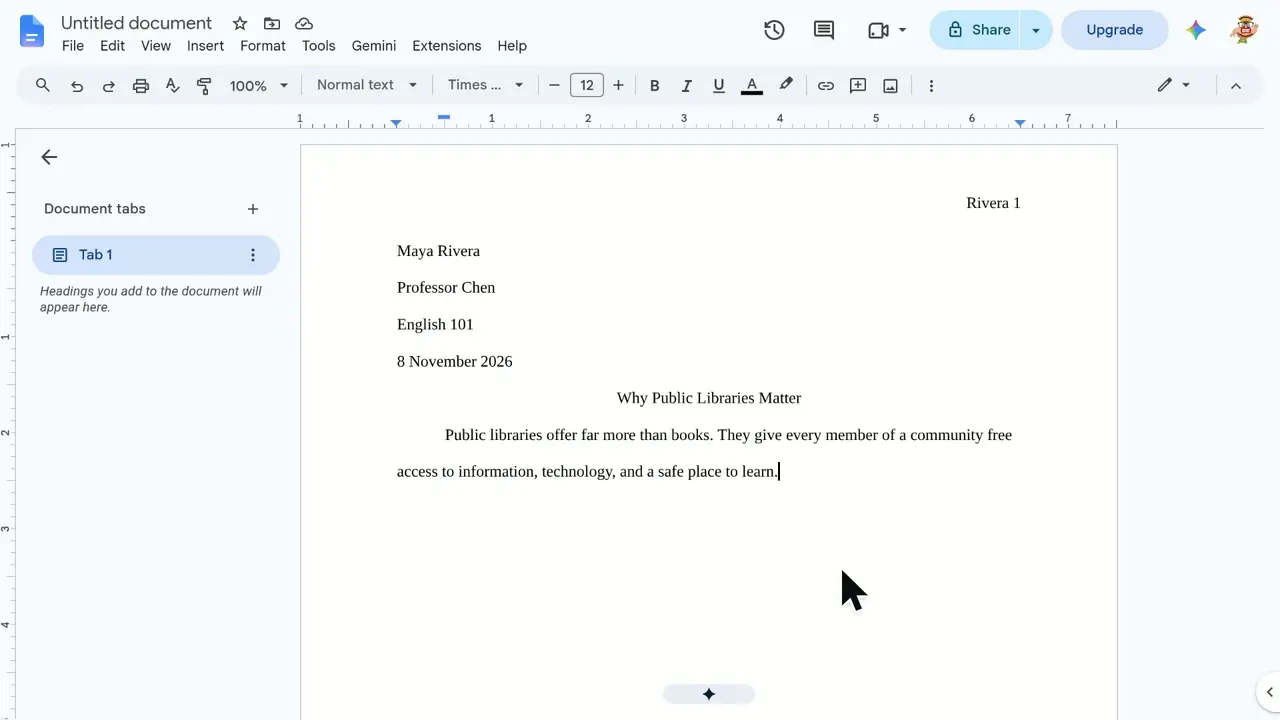
0:09First, let's add some text so the margins are easy to see. Type a title, Quarterly Report. Then add a short paragraph underneath. A few lines of text make it easy to see where the page's edges and margins sit. Right now the text starts a full inch in from the edge of the page. That gap is the margin.
0:35To change it, open the File menu.
0:38Near the bottom, choose Page setup, where the page's size, orientation and margins live. Under Margins, you'll find four boxes: top, bottom, left and right, each measured in inches. They're all set to 1 right now.
0:56Change Top to 0.5, then Bottom to 0.5, Left to 0.5, and Right to 0.5, so every side gets half an inch.
1:11Click OK to apply the new margins. The text now starts much closer to the edges of the page. The title sits higher, and the paragraph stretches wider, fitting on just two lines.
1:24To undo it, open the File menu again. And choose Page setup.
1:31Set Top back to 1, Bottom to 1, Left to 1, and Right to 1, the standard one-inch margins.
1:41Click OK, and the page goes right back to how it started. The text is back to starting one inch from every edge of the page. That's it: open File, then Page setup, to change your margins, and use the same boxes to set them back whenever you like.
Google Docs is a trademark of its owner. SayScreen isn't affiliated with, sponsored or endorsed by Google Docs; this video shows the public app as it looked when it was recorded, and we last checked the steps on November 17, 2026. If Google Docs has changed since, tell us at hey@sayscreen.com. Google Docs's own guide: support.google.com/docs/answer/10296604.