Google Docs tutorial
How to add page numbers in Google Docs
 SayScreen
This whole video was made by AI.
Make your own at sayscreen.com
$1 for 7 days, then $49/month
- 2:05 video
- 9 steps
- Last verified November 10, 2026
This tutorial starts in a new Google Doc, types the title Project Report, and inserts a second page with Control+Enter. It adds page numbers in the top-right header of every page through Insert, Page elements, Page numbers, then opens More options, unchecks Show on first page, and applies the change. Docs turns on Different first page automatically, so the title page stays unnumbered while page two shows 2 in the top right.
Steps
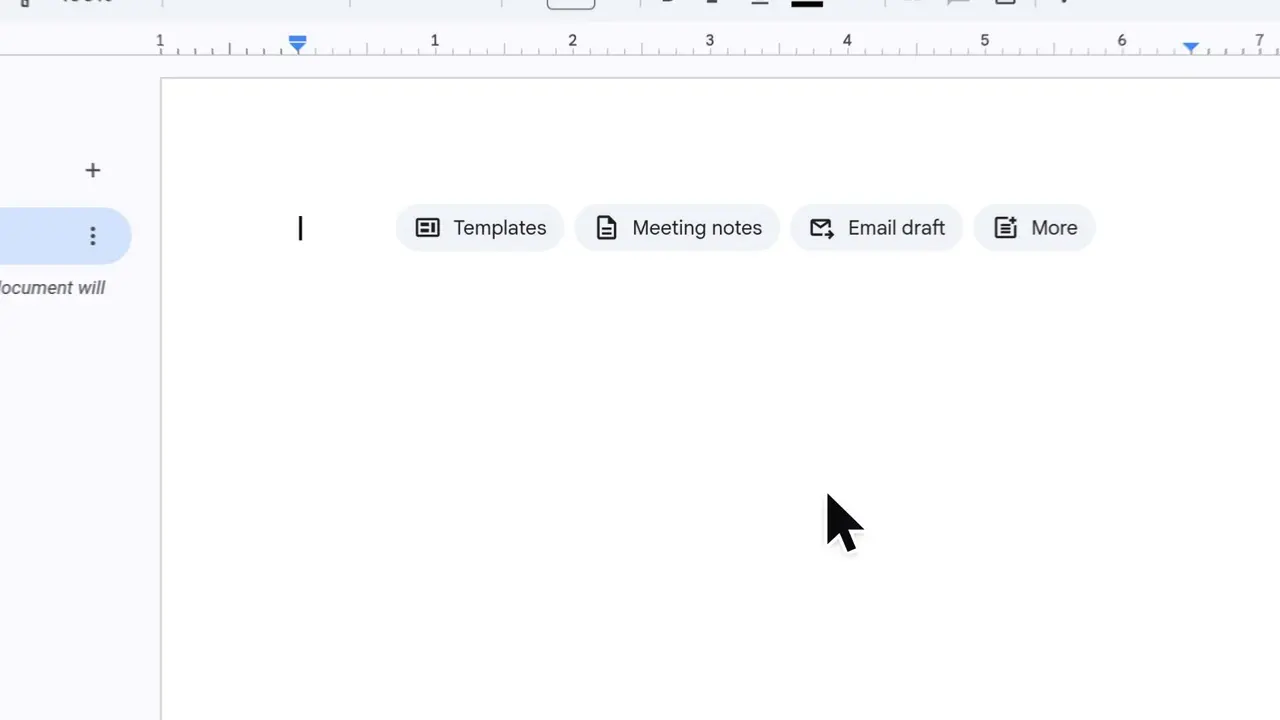
- Type the title in a new documentStart in a new Google Doc and type Project Report as the title, so the document has some content before you add numbers.
- Press Control+Enter to add a second pageControl+Enter inserts a page break so the document has a second page to number.
- Open Insert, then Page elements, then Page numbersPage numbers now live under Page elements, along with headers, footers, and other layout items. In this recording, the Page elements menu shows an Updated label. Point to Page numbers to see the quick layout choices.
- Choose the top-right header layout for every pageThe first option in the top row puts a number in the header at the top right, starting on page one. A 1 appears in the header, and Docs counts up automatically on each page.
- Reopen Insert, Page elements, and Page numbersTo keep the number off a title page, go back through Insert, Page elements, and Page numbers.
- Choose More optionsMore options opens a dialog where you can pick header or footer and which number to start counting from.
- Uncheck Show on first pageClear this checkbox to keep the title page unnumbered.
- Click ApplyThe first page header is now empty, and Docs turns on Different first page automatically.
- Scroll to page two and check the numberPage two shows its number in the top right, while the title page stays clean.
Transcript
0:00In this video, you'll learn how to add page numbers to a Google Doc, and how to keep the number off your first page, perfect for a title page.
0:09Start with some content. Type the title, Project Report.
0:16Press Control plus Enter to insert a page break, so the document has a second page to number.
0:23The cursor jumps to a fresh second page. To number the pages, open the Insert menu. Page numbers now live under Page elements, along with headers, footers and other layout items. Point to Page numbers to see the quick layout choices.
0:42The top row puts numbers in the header, at the top right. Choose the first one to number every page, starting on page one. A number one now sits in the top right corner of the header, and Docs will count up automatically on each page.
0:57For a title page, you'll usually want no number on page one. Head back to Insert. Open Page elements once more. Then Page numbers.
1:10This time, choose More options for finer control over where numbers appear. This dialog lets you pick header or footer, and which number to start counting from.
1:21To keep the title page clean, uncheck Show on first page.
1:27Click Apply to save the change. The first page header is now empty, and Docs has switched on Different first page for you behind the scenes.
1:37Scroll down toward the second page to check the result. And there it is: page two shows its number in the top right, while the title page stays clean. That's it! You've added page numbers to the top right of every page and kept the number off your title page.
Google Docs is a trademark of its owner. SayScreen isn't affiliated with, sponsored or endorsed by Google Docs; this video shows the public app as it looked when it was recorded, and we last checked the steps on November 10, 2026. If Google Docs has changed since, tell us at hey@sayscreen.com.