Google Flow tutorial
How to use Google Flow
 SayScreen
This whole video was made by AI.
Make your own at sayscreen.com
$1 for 7 days, then $49/month
- 4:10 video
- 11 steps
- Last verified November 20, 2026
Google Flow is Google's AI filmmaking tool: you describe a shot and it makes a short video clip. This video starts a new project, asks Flow's Agent for a golden retriever puppy running through sunflowers at sunset and approves the 10 credits it costs. Then it asks for a second clip of the puppy jumping into a pond, has the Agent fix the puppy's color, puts both clips in a scene, plays them back to back and downloads the scene. Without a Google AI plan you get 50 Flow credits a day.
Steps
- Click New projectThe project opens with your media on the left and the Agent on the right, where you describe what you want to make.
- Describe your first shot in the box on the rightHere it's a golden retriever puppy running through a field of sunflowers at sunset, cinematic slow motion.
- Click the arrow, then ApproveFlow asks before it spends credits: this video costs 10. The clip shows up in your media while it's made.
- Click the finished clip, then press playIt opens in the editor with the 8-second clip on the timeline.
- Go back and describe what happens nextThe Agent keeps the conversation, so you can describe just what happens next: the puppy jumps into a small pond and splashes.
- Send it and click ApproveThat's another 10 credits. Here the new clip came out with a black puppy instead of the golden retriever.
- Ask the Agent to fix itHere it asked for the same golden retriever at sunset, then, from the options the Agent offered, asked for a detailed text-to-video description. The redo cost 10 more credits.
- Open the first clip and click the plus at the end of its timelineThe first clip is at the bottom of your media.
- Choose Add clip, then click Add mediaThe newest clip is already selected. Extend needs a paid Google AI plan, but Add clip puts any clip from your project next, and Flow makes the two into a scene.
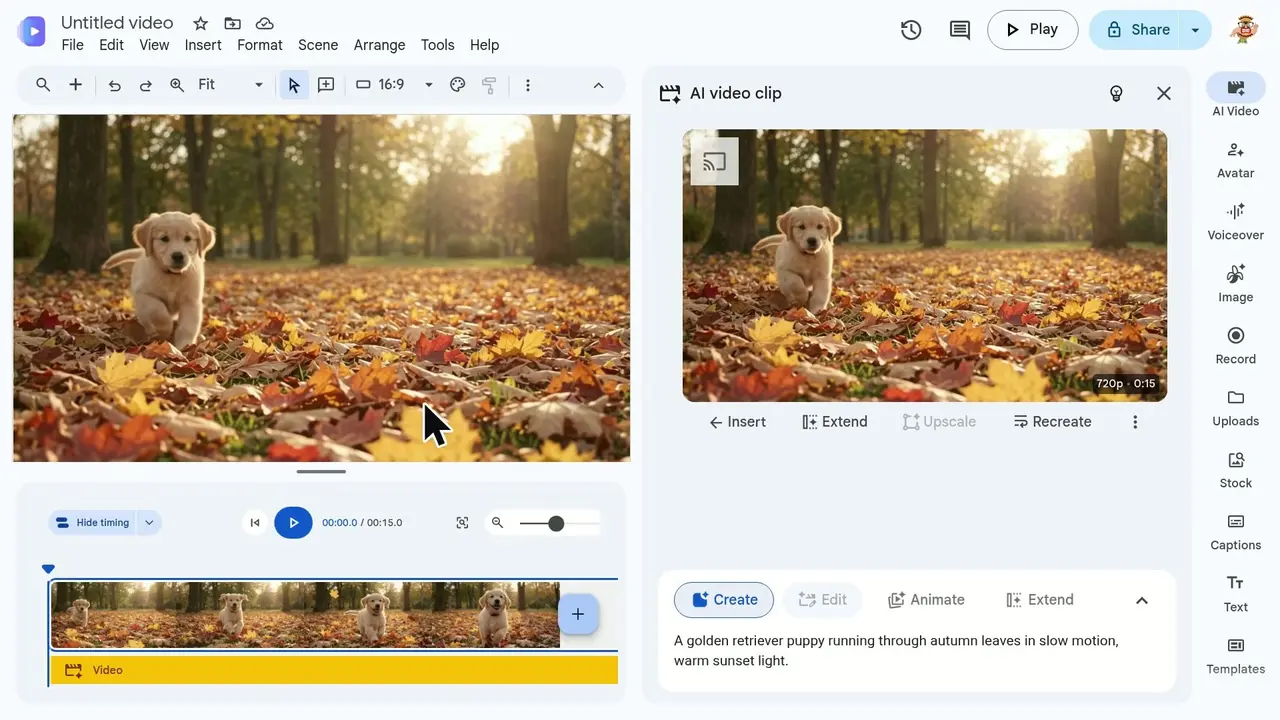
- Zoom out the timeline and press playThe sunflower run leads straight into the pond splash, just under 16 seconds in all.
- Click the download arrow at the topFlow shows Exporting your scene while it gets the download ready.
Transcript
0:00In this video, you'll turn a simple text description into an AI video with Google Flow, extend it with a second shot, and download the result.
0:10Everything in Flow lives inside a project, so start by clicking New project. Your new project opens with your media on the left and the Flow assistant on the right, where you describe what you want to create.
0:26In the prompt box, describe your shot: a golden retriever puppy running through a field of sunflowers at sunset, in cinematic slow motion.
0:37Send it with the arrow button, and Flow gets to work on your request. Before generating, Flow tells you the cost up front: this one video will use 10 credits. Click Approve to spend the credits and start generating. Your clip appears in the media grid right away, with a progress percentage while Flow renders it.
0:58A minute later, the clip is ready. Click it to open it and watch. This opens the scene editor, with your clip on the timeline. Press play to watch your puppy run through the sunflowers. That's an eight second clip, made from a single sentence. Remember, it cost 10 credits.
1:18Now let's continue the story with a second clip. Head back to the project, where the Flow assistant is waiting. Because the assistant remembers this conversation, you can simply describe what happens next: the puppy jumps into a small pond and splashes.
1:36Send it and see what the assistant proposes. It's another 10 credits for this clip, so Approve to start it. The pond clip is ready, but notice the puppy came out black instead of our golden retriever. AI can lose details between shots, so let's ask for a fix.
1:55Tell the assistant to redo it with the same golden retriever puppy from the first clip, at sunset. The assistant offers a few options. The simplest is a more detailed description, so ask for a detailed text-to-video prompt. Again it costs 10 credits. Approve, and the new version starts rendering. Much better: the same golden puppy, leaping toward a sunset pond lined with sunflowers.
2:30To play the clips back to back, start from the first one: the sunflower run at the bottom of the grid. Open it in the scene editor again. Click the plus at the end of the timeline to add another clip after this one.
2:44Extend needs a paid plan, but Add clip lets you place any clip from your project next in line. The newest pond clip, with our golden puppy, is already selected. Click Add media to drop it onto the timeline.
2:59Flow turns this into a scene with both clips in a row. Zoom out the timeline to see them side by side. Press play, and the sunflower run flows straight into the pond jump. The playhead moves along the timeline as the scene plays, first through the sunflowers... Back at the start, the scene now runs fifteen seconds in total. Press play once more to watch it all the way through. The sunflower run hands off straight to the second clip, as our puppy bounds toward the pond and splashes in. Two prompts, one little story.
3:37Happy with it? Click Download scene to save both clips as one video. Flow exports the scene and saves it to your computer as a single video file, ready to share. And that's it: you started a project, generated a clip from a prompt, added a second shot, played them back to back, and downloaded the finished video.
Google Flow is a trademark of its owner. SayScreen isn't affiliated with, sponsored or endorsed by Google Flow; this video shows the public app as it looked when it was recorded, and we last checked the steps on November 20, 2026. If Google Flow has changed since, tell us at hey@sayscreen.com. Google Flow's own guide: support.google.com/flow/answer/16353333.