Notion tutorial
How to use templates in Notion
 SayScreen
This whole video was made by AI.
Make your own at sayscreen.com
$1 for 7 days, then $49/month
- 5:24 video
- 12 steps
- Last verified November 24, 2026
Notion's template gallery is called Marketplace, and it's built into the app. This tutorial opens it from the sidebar, browses the Keep life on track and Get things done categories, then searches for "weekly planner". It opens Simple Weekly To-do List, a free template made by Notion, previews it and adds it to the workspace, where it shows up in the sidebar as Weekly Plan. It also shows where to find it again (Purchased), what else a template's page offers, and two more places templates live: the Templates button on a blank page and the template menu beside New in a database.
Steps
- Open Marketplace from the sidebarHere it's in the Library, Trash, more… menu at the bottom of the sidebar. Marketplace opens with a search box and categories such as Get things done and Keep life on track.
- Browse a categoryKeep life on track opens with collections such as The Sunday reset, then tabs like Health & wellness that narrow the results. Each template card shows its rating and price, and besides templates there are agents, connections and skills, labeled on their cards. Marketplace at the top goes back to the front page.
- Search for a templateClick Search, type what you want (weekly planner here) and press Enter, then Escape to close the suggestions. The results are grouped by type, with the templates further down.
- Open a template's pageThis tutorial opens Simple Weekly To-do List, a free template made by Notion. Its page shows a screenshot, the creator, its ranking, ratings and downloads.
- Click PreviewThe preview shows the page you'd get: here Weekly Plan, with a heading and three to-do boxes for each day, Mon to Sun.
- Click AddA message says the template is ready, and the new page appears in the sidebar under Private.
- Leave the previewThe arrow on the left exits it. Back on the template's page, the creator's card shows how many templates they've made (652 for Notion), and Details lists its categories.
- Find it again in PurchasedPurchased lists the templates, agents and services you've added, free ones too, with the price and date. Each row's menu has Contact creator, Add again and View template in gallery.
- Go back to Marketplace's front pageClose Purchased and click Marketplace at the top. The front page also has Hire a consultant.
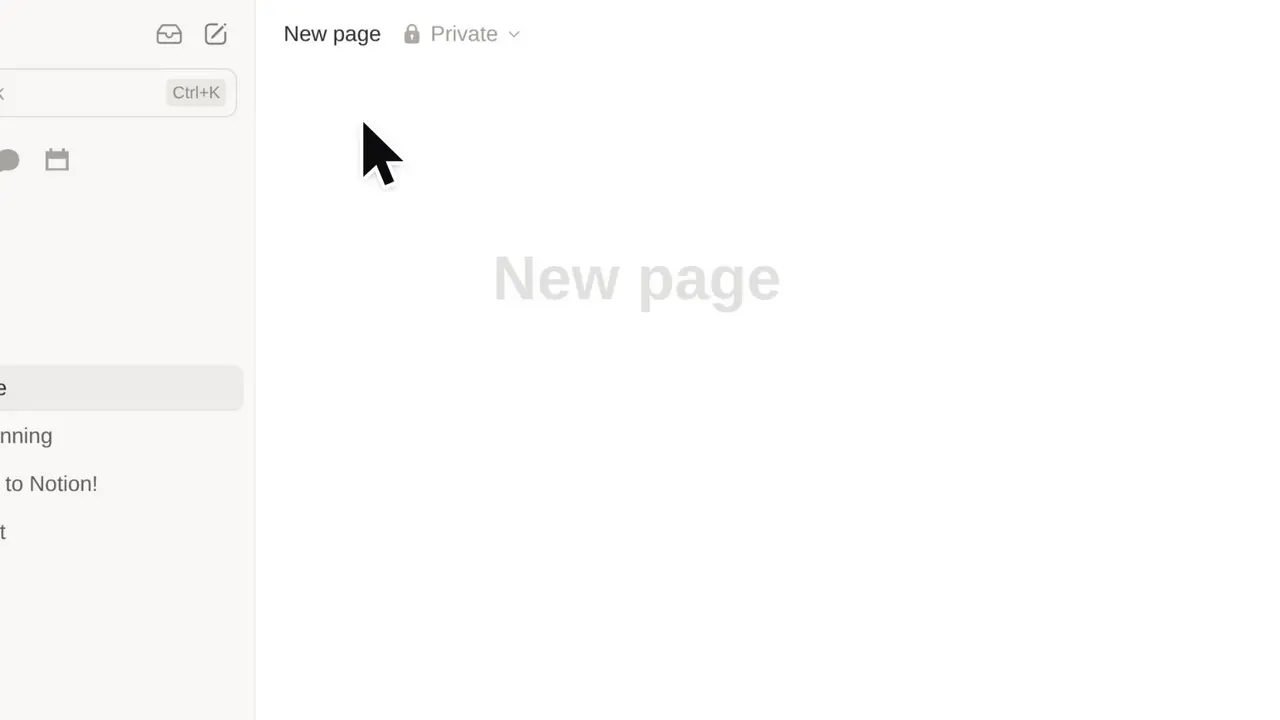
- Find Templates on a blank pageOn a blank page (here an empty one in the sidebar), Get started with includes a Templates button.
- Find database templates beside NewIn a database (Content Tracker here), the arrow beside New opens Templates for Content Tracker, where New template makes a reusable page template for this database.
- Open the page you addedWeekly Plan is your own copy, ready to edit.
Transcript
0:00Templates give you a ready-made page in seconds. Let's find Notion's template gallery, search it for a weekly planner, preview one, and add it to your workspace.
0:11The gallery lives in the sidebar. Open the Library, Trash, and more menu at the bottom. Choose Marketplace. This is Notion's template gallery, built right into the app. Up top there's a search box, and below it the gallery is organized into categories, from getting things done to keeping life on track.
0:32Let's open Keep life on track, the home for personal planning, routines, and goals. Each category opens with hand-picked collections, like The Sunday reset, and below them, tabs that narrow things down by topic. Switch to Health and wellness and the results below change to match. Every card shows a preview image, its rating, and its price. Some templates are paid, while many others are free. The Marketplace link at the top takes you back to the gallery's front page. Next, try Get things done, which covers tasks, projects, and planning for work. Notice the gallery holds more than page templates. Cards are labeled as agents, connections, or templates you can copy into your workspace.
1:22Browsing is great for ideas, but when you know what you want, search. The Search button stays at the top of every gallery page. Type weekly planner and press Enter. As you type, suggestions pop up, including a Weekly Planner category. Pressing Enter opened the full results page underneath. Press Escape to close the suggestions. Results are grouped by type, starting with agents and AI skills. Further down are the templates, with ninety-four matches for weekly planner, and plenty of them free.
1:59This one, Simple Weekly To-do List, is free and made by Notion itself. Let's open it. Each template page sums it up with a screenshot, its creator, its ranking, over three thousand ratings, and more than eighty-three thousand downloads.
2:17It's listed under the Weekly Planner category. To see exactly what you'd get, click Preview. The preview opens the real page, called Weekly Plan. Each day gets its own heading with a few to-do checkboxes underneath. Scrolling down, the week continues through Friday and on to the weekend. It's simple and clean, ready for you to fill in.
2:42That's exactly what we need, so click Add in the preview bar to copy it into your workspace. A message confirms the template is ready, and a new Weekly Plan page has appeared in your sidebar under Private.
2:56Before we open it, let's tour the rest of the gallery. The arrow on the left exits the preview. Close the confirmation; you can always reach the page from the sidebar. On any template page, the Share button lets you pass a template along, and the creator's card opens all their other templates. Notion alone has over six hundred. Further down, Details lists the template's categories. Click one to browse similar templates.
3:25Up top, Purchased keeps track of templates, agents, and services you've bought from the gallery, with price and date. Free templates show up here too, so the planner we just added is listed, making it easy to find again later. Each row's menu lets you contact the creator, add the template again, or jump back to it in the gallery. Press Escape to close the menu.
3:51Then close the Purchased window. Next to it, My profile is where you can become a creator and publish templates of your own. Back on the gallery's front page, there's one more option worth knowing. If no template fits, Hire a consultant connects you with Notion experts who can build a custom setup for you.
4:12Templates aren't only in the Marketplace menu. Open any blank page, like this empty one in the sidebar. At the bottom, under Get started with, the Templates button takes you straight to the same gallery.
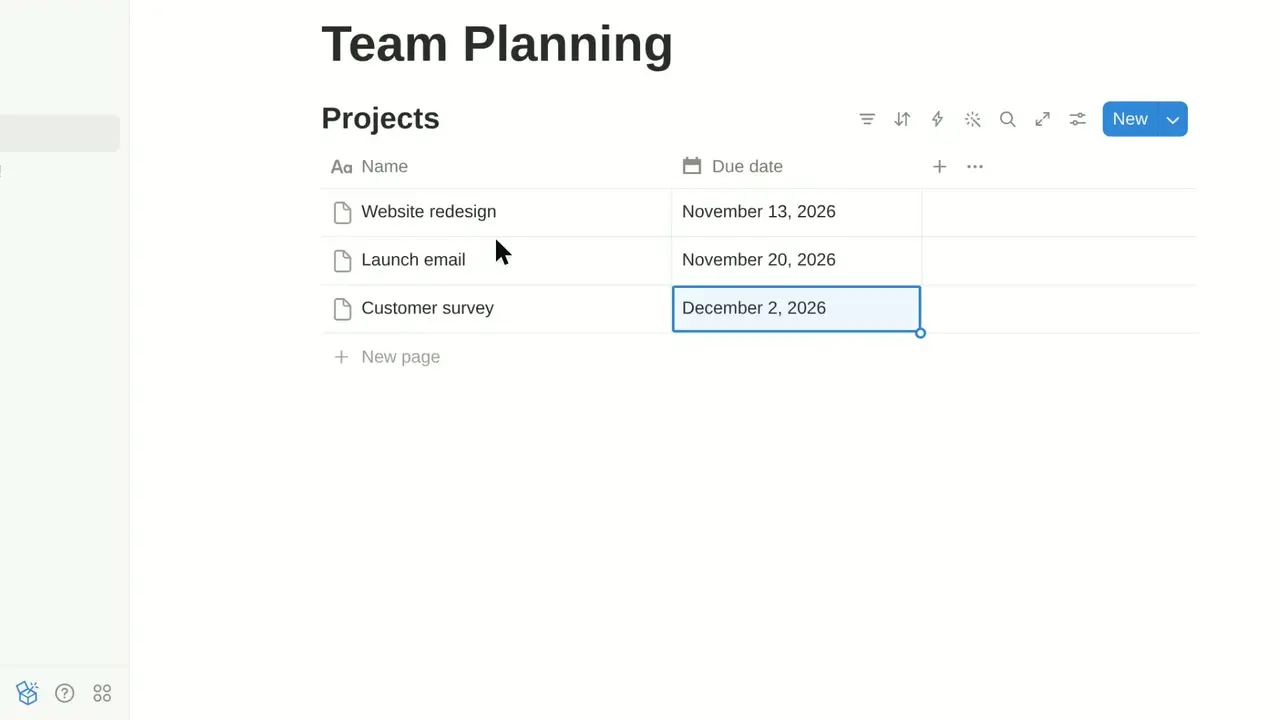
4:26Databases have templates of their own. Let's open the Content Tracker to see where they live. Click the arrow beside New. Here you can create reusable page templates for every new entry in this database. Close that with Escape. And remember, the Marketplace is always one click away in the sidebar menu we used at the start.
4:49Finally, open Weekly Plan, the planner we added from the gallery. Here it is: your own copy of the planner, with a heading and to-do boxes for every day. It's fully editable, so you can start planning your week right away. That's how you find templates in Notion: browse or search the Marketplace, preview a template, and add it to your workspace in one click.
Notion is a trademark of its owner. SayScreen isn't affiliated with, sponsored or endorsed by Notion; this video shows the public app as it looked when it was recorded, and we last checked the steps on November 24, 2026. If Notion has changed since, tell us at hey@sayscreen.com. Notion's own guide: www.notion.com/help/start-with-a-template.