GitHub tutorial
How to create a pull request in GitHub
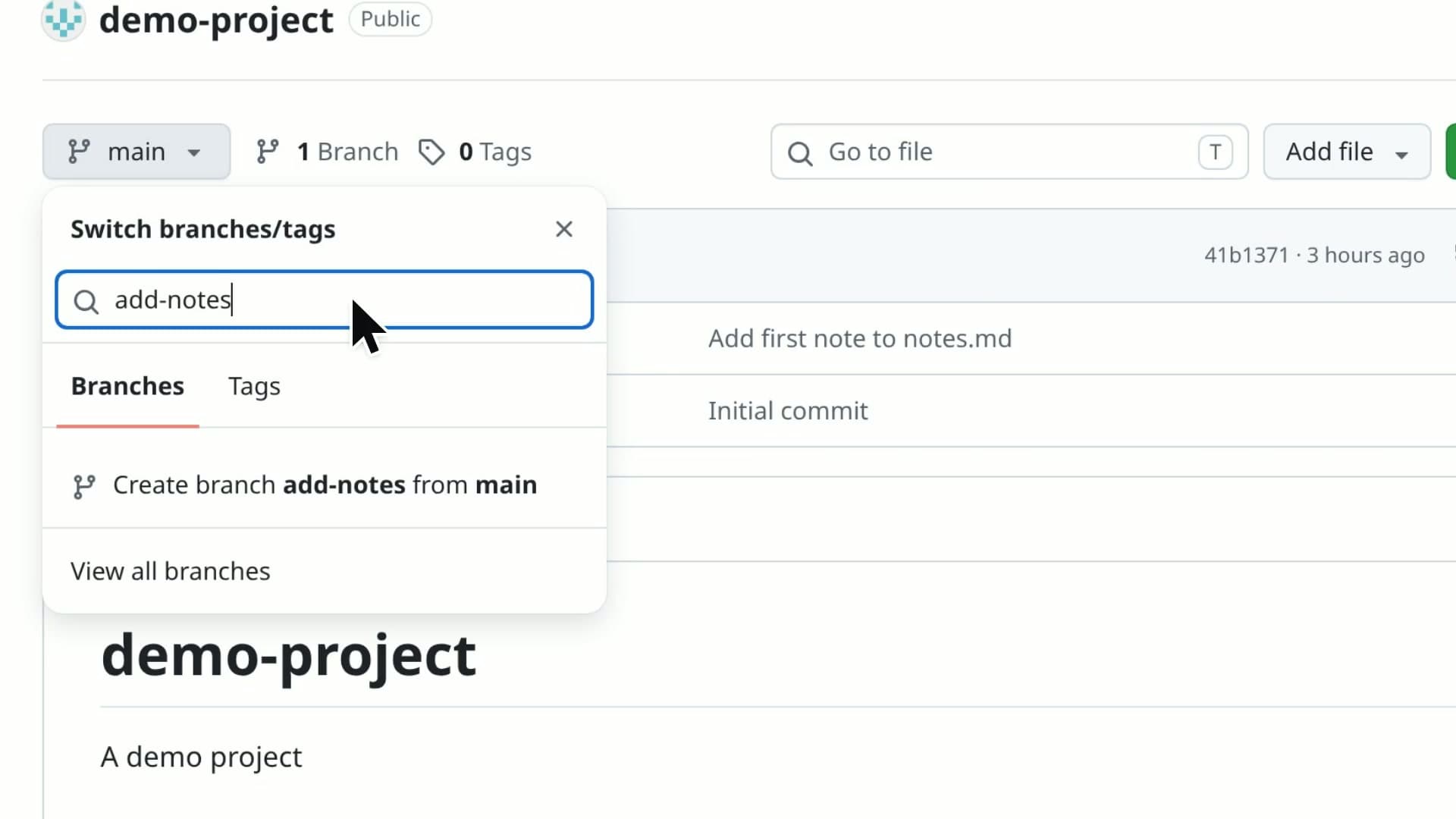
A pull request asks to merge the changes on one branch into another, so people can review them first. This video commits a small change to the add-notes branch, opens a pull request to merge it into main, and ends on the new pull request without merging it.
- 2:12 video
- 7 steps
- Last verified November 2, 2026
Steps
- Open the file to change on your branch
- Click the pencil icon and make your change
- Click Commit changes, then confirm in the dialogKeep Commit directly to the add-notes branch. Editing main? Choose Create a new branch, which starts the pull request for you.
- On the repository's main page, click Compare & pull requestNo banner? Switch to your branch, open Contribute and click Open pull request.
- Check that base is main and compare is your branchBase is where the changes go, compare is where they come from.
- Add a description and click Create pull request
- Check the new pull request's pageNothing changes on main until someone clicks Merge pull request.
Transcript
0:00A pull request asks to merge the changes on one branch into another, so teammates can review them first. Let's make a small change on the add-notes branch and open a pull request for it.
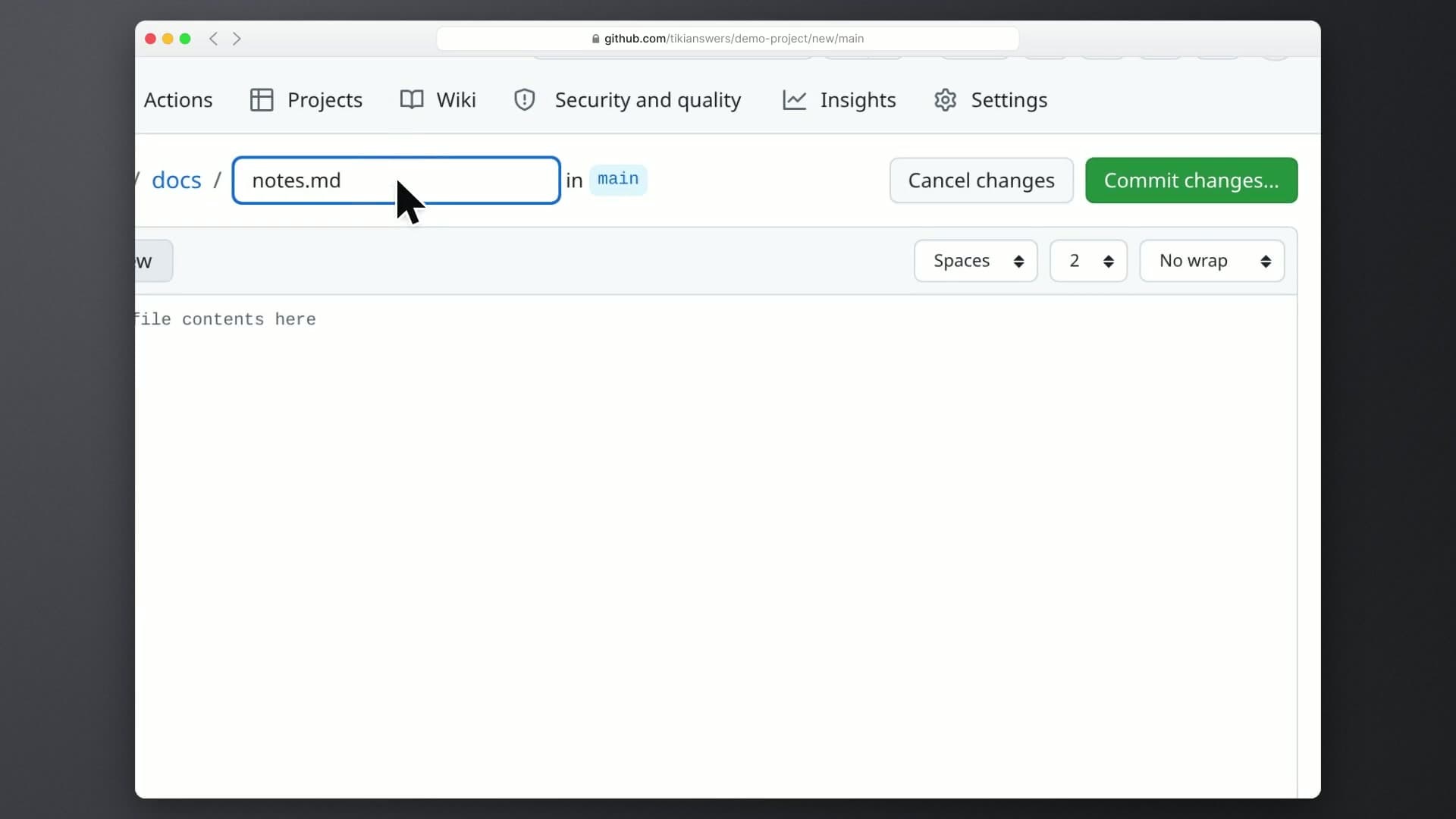
0:11First, open the docs folder, where our notes file lives. Then open notes.md to see its contents.
0:19The file has just one note so far. Click the pencil icon to edit it right in the browser. Click on the empty second line and type your new note.
0:32Notice the editor says we're working in add-notes. Click Commit changes to save the edit. GitHub suggests a commit message for you. Leave it set to commit directly to the add-notes branch, so the change stays there and main is untouched. Confirm with Commit changes.
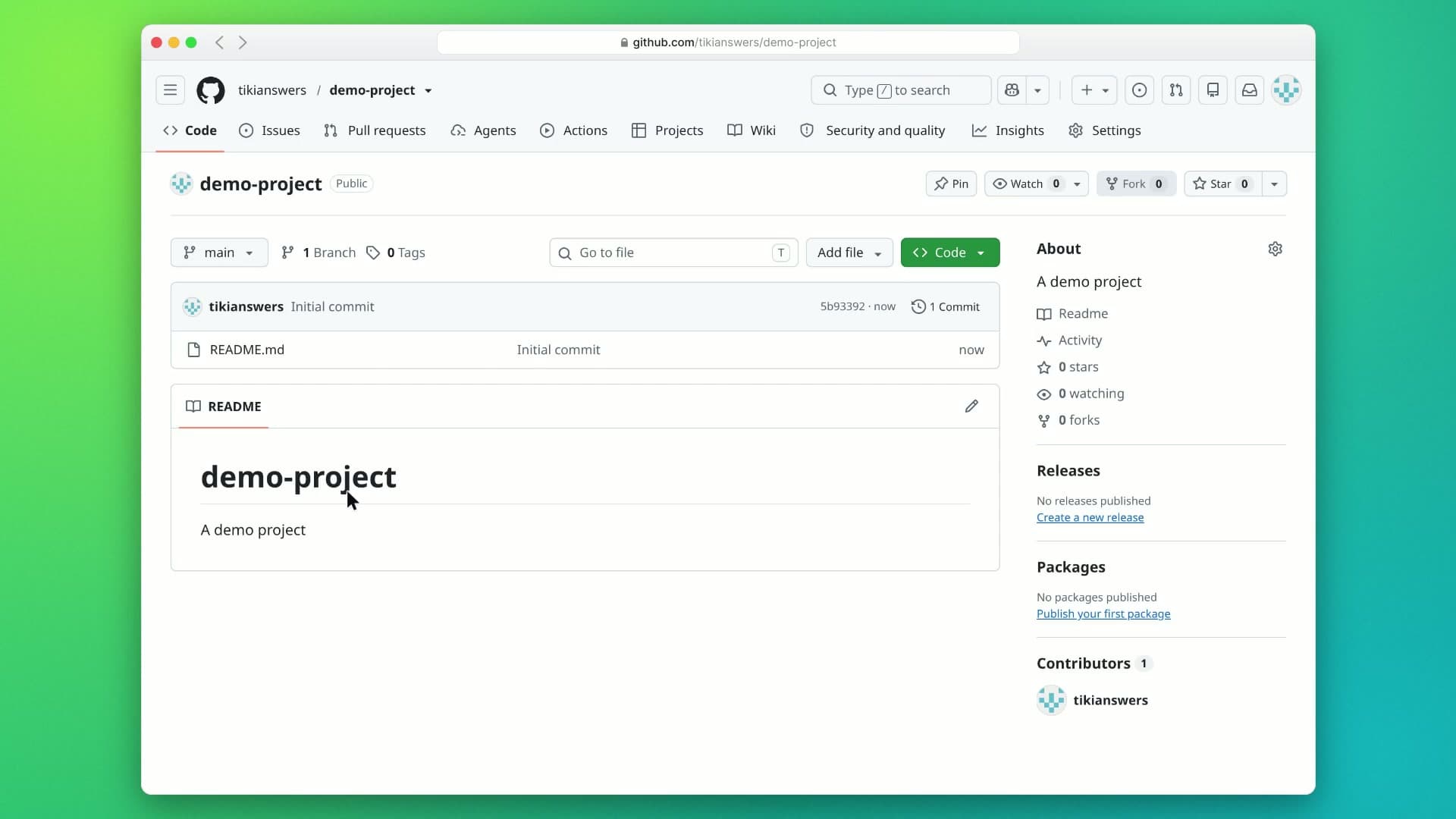
0:53The commit is saved on add-notes. Now head back to the repository's main page to propose merging it. GitHub noticed our recent push and shows a yellow banner. Click Compare & pull request to start one.
1:09Before writing anything, check the branches. The base is main, where the changes will go, and compare is add-notes, where they come from. GitHub also confirms they can merge cleanly.
1:21The title is filled in from our commit. Add a short description so reviewers know what changed and why. Scroll down a little to find the button that submits it. Below, you can see this request carries one commit and one changed file. Click Create pull request.
1:42Your pull request is open. The header confirms it wants to merge one commit into main from add-notes, and your description leads the conversation. Nothing changes on main until someone clicks Merge pull request. That's where teammates review and discuss first, so we'll leave it open. That's it: edit on your branch, commit, then open a pull request into main. Next, try adding a reviewer or checking the Files changed tab.
GitHub is a trademark of its owner. SayScreen isn't affiliated with, sponsored or endorsed by GitHub; this video shows the public app as it looked when it was recorded, and we last checked the steps on November 2, 2026. If GitHub has changed since, tell us at hey@sayscreen.com. GitHub's own guide: docs.github.com/en/pull-requests/how-tos/create-pull-requests/creating-a-pull-request.