Notion tutorial
How to make a progress bar in Notion
 SayScreen
This whole video was made by AI.
Make your own at sayscreen.com
$1 for 7 days, then $49/month
- 3:00 video
- 13 steps
- Last verified November 26, 2026
A Notion Number property can show as a progress bar, and with Divide by at its starting 100, a value of 100 fills the bar. This video makes a new page called Project Tracker, adds a table database with three tasks, then a Number property called Progress set to show as a bar, and enters 25, 60 and 100, so the bars fill a quarter, more than half and all the way.
Steps
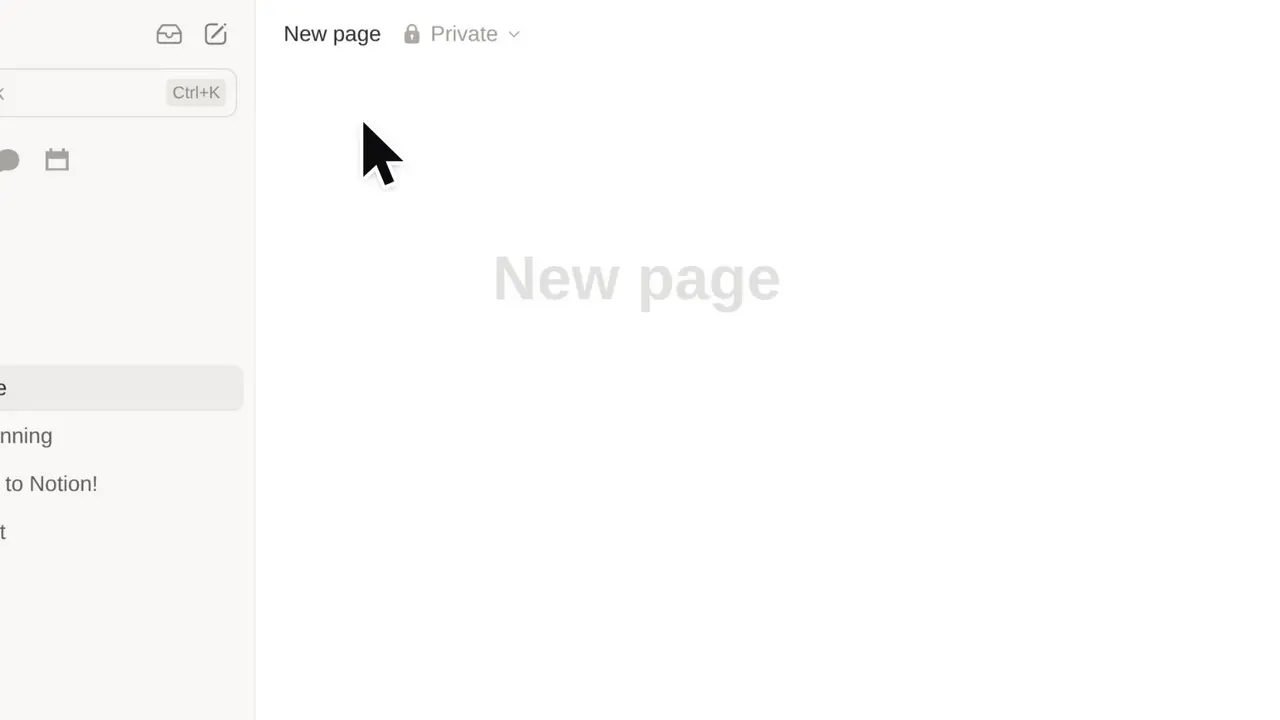
- Click New page at the top of the sidebar
- Give the page a titleProject Tracker here.
- Type /table and choose Table viewPick Table view, marked Database, not Table.
- Choose New empty data source
- Name the first taskClick New page in the first row and type a name, such as Design mockups.
- Add the other tasksClick New page at the bottom of the table for each: Write copy and Launch site here.
- Add a property called ProgressClick Add property in the table header and type the name.
- Choose Number as its type
- Set Show as to BarClick the Progress header and point to Edit property. Under Show as, choose Bar. Divide by starts at 100, so 100 fills the bar.
- Close the menusPress Escape twice.
- Enter a progress value for the first taskClick its Progress cell, type 25 and press Enter: a quarter of the bar fills.
- Enter a value for the next task60 for Write copy.
- Enter 100 for a finished taskLaunch site’s bar fills all the way.
Transcript
0:00In this video, you'll learn how to build a simple project tracker in Notion, with a progress bar that fills up as each task moves forward.
0:09Start by clicking New page in the sidebar to open a fresh, blank page.
0:15Give it a title. We'll call this one Project Tracker.
0:20On the line below, type slash table to bring up the database blocks. Pick Table view, the database option. Unlike a plain table, a database lets each column have its own property type, which is what makes progress bars possible.
0:37Notion asks where the data should come from. Choose New empty data source so we start with a clean table.
0:45The table comes with three empty rows. Click into the first row's Name cell to add our first task. Name it Design mockups.
0:56For the next task, click New page at the bottom of the table. Call this one Write copy. And one more row for the final task. Type Launch site, and our task list is ready.
1:11Next, we need a column to hold the progress. Click Add property in the table header. Name the property Progress.
1:20Then choose Number as its type, since only number properties can be shown as a progress bar.
1:26Our new Progress column is in place. Click its header to open the property options. Under Show as, you can display numbers as plain digits, a bar or a ring. Pick Bar. Notice Divide by is set to 100. That means a value of 100 fills the bar completely, so each number you enter reads as a percentage.
1:52Press Escape to close the menu and head back to the table. Once more, and the property menu closes too.
1:59Now let's fill in some values. Click the Progress cell for Design mockups. Type 25 and press Enter, for twenty-five percent done.
2:10A quarter of the bar fills in green. Next, click the cell for Write copy. This one's further along, so enter 60.
2:21Finally, click the cell for Launch site. The site is live, so type 100. Look at how the bars fill to match: a quarter for Design mockups, more than half for Write copy, and completely full for Launch site. That's it. You made a page with a table database, added a Number property, set it to show as a bar, and now each task shows its progress at a glance.
Notion is a trademark of its owner. SayScreen isn't affiliated with, sponsored or endorsed by Notion; this video shows the public app as it looked when it was recorded, and we last checked the steps on November 26, 2026. If Notion has changed since, tell us at hey@sayscreen.com. Notion's own guide: www.notion.com/help/database-properties.