Gmail tutorial
How to automatically move emails to a folder in Gmail
 SayScreen
This whole video was made by AI.
Make your own at sayscreen.com
$1 for 7 days, then $49/month
- 1:37 video
- 6 steps
- Last verified November 19, 2026
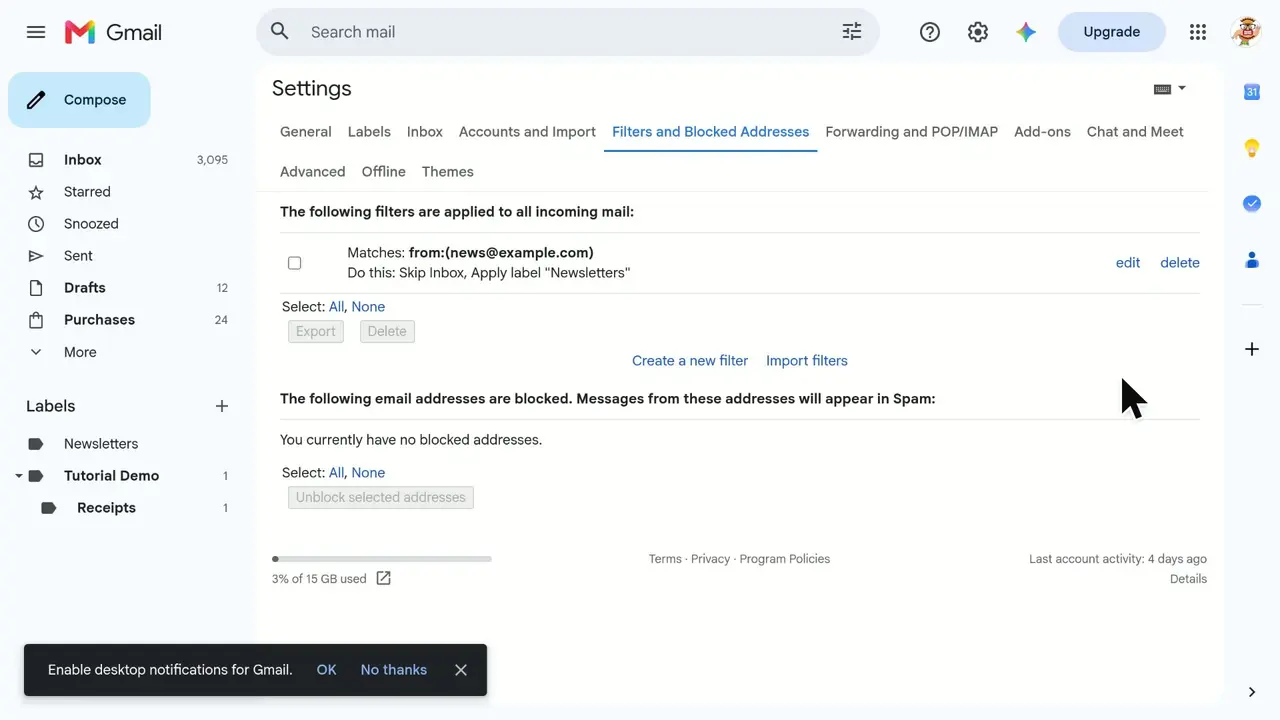
Gmail uses labels instead of folders, and a filter can move new mail into one automatically. This video sends every new email from newsletter@example.com into a Newsletters label: it opens the search options, enters the sender, chooses Create filter, ticks Skip the Inbox and picks the label. For everything else a filter can do, and where to edit or delete one, watch How to create a filter in Gmail, linked below.
Steps
- Open the search options at the end of the search barFilters start from a search. The Newsletters label is already in the sidebar, ready to act as the folder.
- Enter the sender in From
- Click Create filter instead of Search
- Tick Skip the Inbox (Archive it)The emails bypass your inbox, just like moving them out of it.
- Open the label menu and choose the folderGmail ticks Apply the label for you. If you don't have the label yet, New label makes one here.
- Click Create filter to save itFrom now on, new mail from that sender goes straight into the folder.
Transcript
0:00In Gmail, folders are called labels, and a filter can move new mail into one automatically. Let's send everything from newsletter at example dot com straight into a Newsletters folder. The Newsletters label is already here in the sidebar, so it's ready to act as our folder.
0:19Filters start from a search. Open the search options at the end of the search bar.
0:24In the From field, enter the sender: newsletter at example dot com.
0:30Instead of searching, choose Create filter to decide what happens to these messages.
0:36Tick Skip the Inbox so these emails bypass your inbox entirely, just like moving them out.
0:43Next, open the label menu to pick the folder they should land in. Choose Newsletters. If you didn't have that label yet, New label would let you create it right here. Gmail ticked Apply the label for us, so both actions are set: skip the inbox, and file under Newsletters.
1:03Finally, click Create filter to save the rule. Gmail confirms your filter was created. From now on, new mail from that sender goes straight into Newsletters. That's it: with one filter, Gmail now sorts emails from newsletter at example dot com out of your inbox and into your Newsletters folder automatically.
Gmail is a trademark of its owner. SayScreen isn't affiliated with, sponsored or endorsed by Gmail; this video shows the public app as it looked when it was recorded, and we last checked the steps on November 19, 2026. If Gmail has changed since, tell us at hey@sayscreen.com. Gmail's own guide: support.google.com/mail/answer/6579.