Notion tutorial
How to add a calendar in Notion
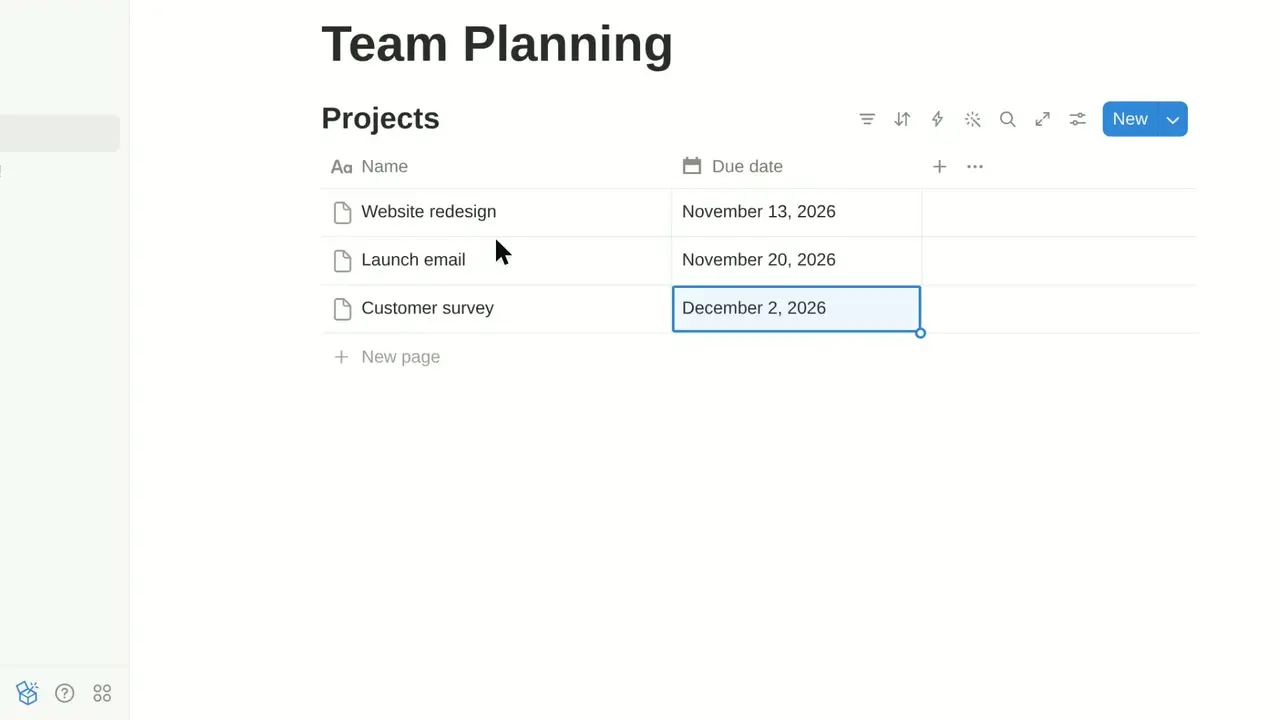
A calendar view shows each row of a Notion database on the day in its Date property. This video adds one to a Projects table with three due dates, then moves ahead a month to find the last one. It's a view on your page, not Notion Calendar, Notion's separate calendar app.
- 1:02 video
- 5 steps
- Last verified November 3, 2026
Steps
- Hover over the table's name and click the + next to itWith more than one view, the + is next to the current view's name.
- Choose CalendarA calendar needs a Date property, here Due date. With more than one, pick it under Show calendar by.
- Close the New view panelType a name in View name first if you like. Left empty, the tab is called Calendar.
- Click > next to Today to show the next monthScrolling down the calendar moves ahead too, and < goes back a month.
- Switch between Table and Calendar with the tabs above itBoth views show the same rows, so a change in one shows in the other.
Transcript
0:00Here's the Team Planning page, with a Projects table where every row has a due date. Let's see those same projects laid out on a calendar.
0:08Hover the table's name and click the plus button to add a new view of the same data.
0:14Notion offers several layouts here. Choose Calendar, and each project lands on the day of its due date. Notion picked up the Due date property automatically, so the calendar is already organized by it.
0:26Close the settings panel to see the full calendar. There they are: Website redesign sits on November 13, and Launch email on November 20.
0:36Customer survey is due in December, so click the arrow next to Today to jump ahead a month. And there's Customer survey, right on December 2.
0:47Both views share the same data, and your original Table view is always one click away in these tabs. That's it. With one new view, your Projects table now doubles as a calendar organized by due date.
Notion is a trademark of its owner. SayScreen isn't affiliated with, sponsored or endorsed by Notion; this video shows the public app as it looked when it was recorded, and we last checked the steps on November 3, 2026. If Notion has changed since, tell us at hey@sayscreen.com. Notion's own guide: www.notion.com/help/calendars.