Canva tutorial
How to make a YouTube banner in Canva for free
 SayScreen
This whole video was made by AI.
Make your own at sayscreen.com
$1 for 7 days, then $49/month
- 4:09 video
- 14 steps
- Last verified November 11, 2026
YouTube recommends 2560 x 1440 pixels for a channel banner, and Canva's blank YouTube Banner design opens at exactly that size. This video builds one from scratch without paying for anything: a dark background, a channel name, a tagline and an illustration from the free graphics. It also makes the banner fit every device. YouTube uses the same image everywhere and crops it differently: TVs show all of it, while phones show only a strip across the middle, about 1546 x 423 pixels. That strip is the safe area for text and logos (YouTube gives it as 1235 x 338 on a 2048 x 1152 image, the smallest it accepts), so the video groups the words and the picture and centers them inside it with Position. When yours is done, download it from Share, then Download, and upload it in YouTube Studio under Customization, then Profile. YouTube takes banner files of up to 6 MB.
Steps
- Click Templates, then search for YouTube BannerTemplates is above the search box on Canva's home page.
- Click Create a blank YouTube BannerIt opens at 2560 x 1440 pixels, the size YouTube recommends.
- Click the page, then the rainbow color swatch above itIn the Color panel's search box, type a hex code such as #2b1d16 and click the swatch it finds.
- Open Text, click Add a heading and type your channel name
- Click Add a subheading and type your taglineIf it wraps, press Escape and lower the font size in the toolbar above the page. The video types 54.
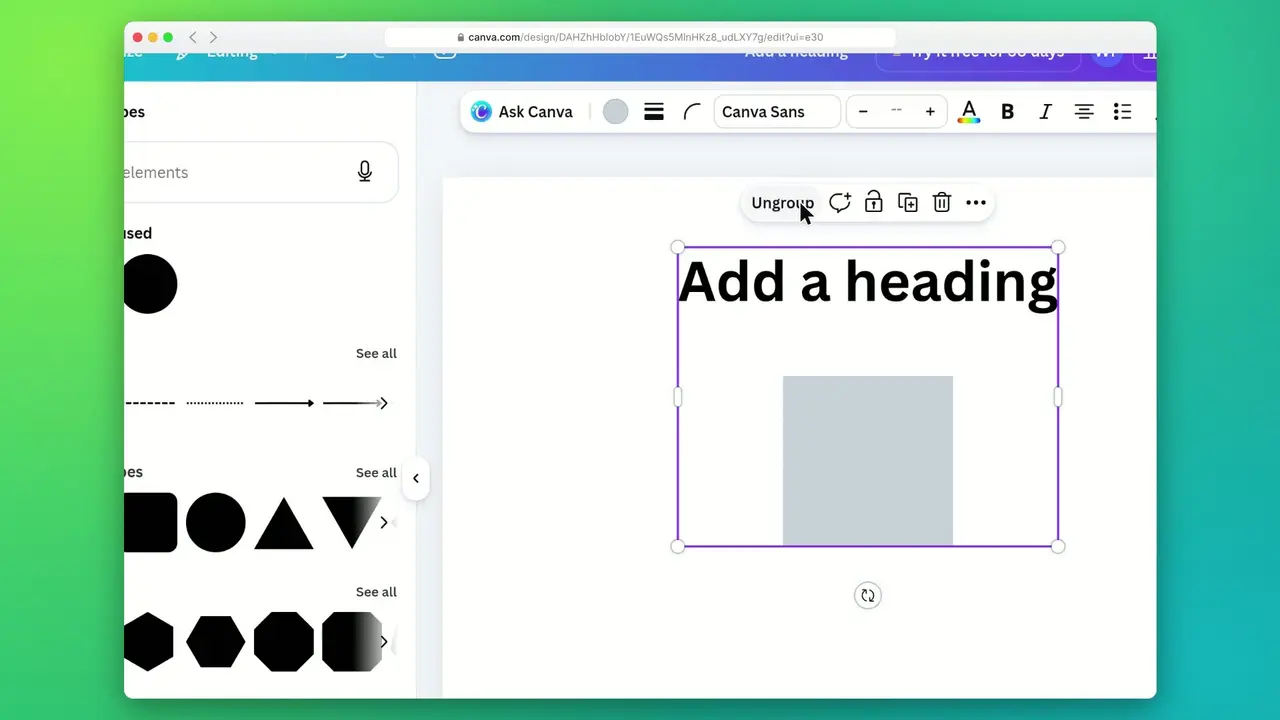
- Drag a box around both lines and click GroupOr press Ctrl+G (Command+G on a Mac).
- Click Position, then MiddleMiddle centers the group top to bottom. Center is greyed out: it's already centered left to right.
- Keep your words inside the middle stripPhones show only about 1546 x 423 pixels in the center of a 2560 x 1440 banner.
- Open Elements and search for an illustration
- Click Graphics, open the filters, check Free and click ApplyThe filters button is the sliders icon in the search box.
- Click a graphic, shrink it from a corner and drag it beside the words
- Press Ctrl+A and click GroupCommand+A on a Mac. The graphic and the words can now be centered as one.
- Open Position again and click Center, then MiddleThis time Position is behind the three dots at the right end of the toolbar. The video doesn't show that click.
- Close the panels and click outside the bannerThe X closes Position, and the small arrow on the side panel's right edge collapses that panel. To download the banner, click Share, then Download, choose a file type and click Download.
Transcript
0:00Let's make a YouTube banner in Canva, completely free. We'll start from a blank design, add a dark background, your channel name, a tagline, and a fun food illustration.
0:12On the home page, switch the search to Templates so it looks through design types instead of your own files. Search for YouTube Banner.
0:24Templates with a crown are Pro, so to keep it free, choose Create a blank YouTube Banner. It opens at the exact size YouTube wants, 2560 by 1440 pixels. Here's our blank banner in the editor. Templates sit on the left, and the canvas fills the rest of the screen.
0:45First, the background. Click an empty spot on the canvas to select the page itself. Then open the color swatch in the toolbar. For a warm, cozy feel, type a deep chocolate brown hex code, #2b1d16. Click the swatch, and the whole banner turns dark, which makes light text really pop.
1:10Next comes the channel name. Open the Text tab. Click Add a heading to drop a big title onto the banner. Canva even made it white for our dark background. With the text selected, type the channel name, Cozy Kitchen.
1:31For the tagline, add a subheading, which comes in smaller than the title. Canva tucks it right under the heading. Type New recipes every Friday. It wraps onto two lines, so press Escape to select the whole text box and shrink it a little. Set the font size to 54 so the tagline fits on one line.
1:55To center both lines together, drag a box around them to select the heading and the tagline at once. Group them so they move as one block.
2:05Open Position to line the block up with the page. It's already centered left to right, so Center is greyed out. Click Middle to center it top to bottom too.
2:17Here's why the middle matters. TVs show the whole banner, but phones show only this center strip, about 1546 by 423 pixels, so your channel name and tagline belong right here.
2:32Now for a little personality. Open Elements to find an illustration. Search for food illustration.
2:42Switch to Graphics to see just illustrations. The crowned ones are Pro, so open the filters and keep only free graphics. Under Price, check Free. Then apply.
2:57This colorful salad bowl suits a cooking channel. Click it to add it to the banner. It's huge, so drag a corner inward to shrink it down to about the height of the text. Now drag the bowl so it sits just to the left of the words.
3:13The words alone are centered, but now the bowl and the words make one picture. Press Control A to select everything together. Group them into one unit.
3:25Open Position again. Click Center, and the bowl and words shift together into the middle of the page. And Middle keeps the whole group level in that phone-safe strip.
3:38Close the panel to give the banner some room. Then collapse the side panel for a full view. Click off the design to clear the selection and admire the result. And there it is: a free YouTube banner with a cozy dark background, your channel name, tagline and a food illustration, all centered so they show up on every screen.
Canva is a trademark of its owner. SayScreen isn't affiliated with, sponsored or endorsed by Canva; this video shows the public app as it looked when it was recorded, and we last checked the steps on November 11, 2026. If Canva has changed since, tell us at hey@sayscreen.com. Canva's own guide: www.canva.com/sizes/youtube/.