ChatGPT tutorial
How to use ChatGPT for beginners
 SayScreen
This whole video was made by AI.
Make your own at sayscreen.com
$1 for 7 days, then $49/month
- 2:48 video
- 10 steps
- Last verified November 15, 2026
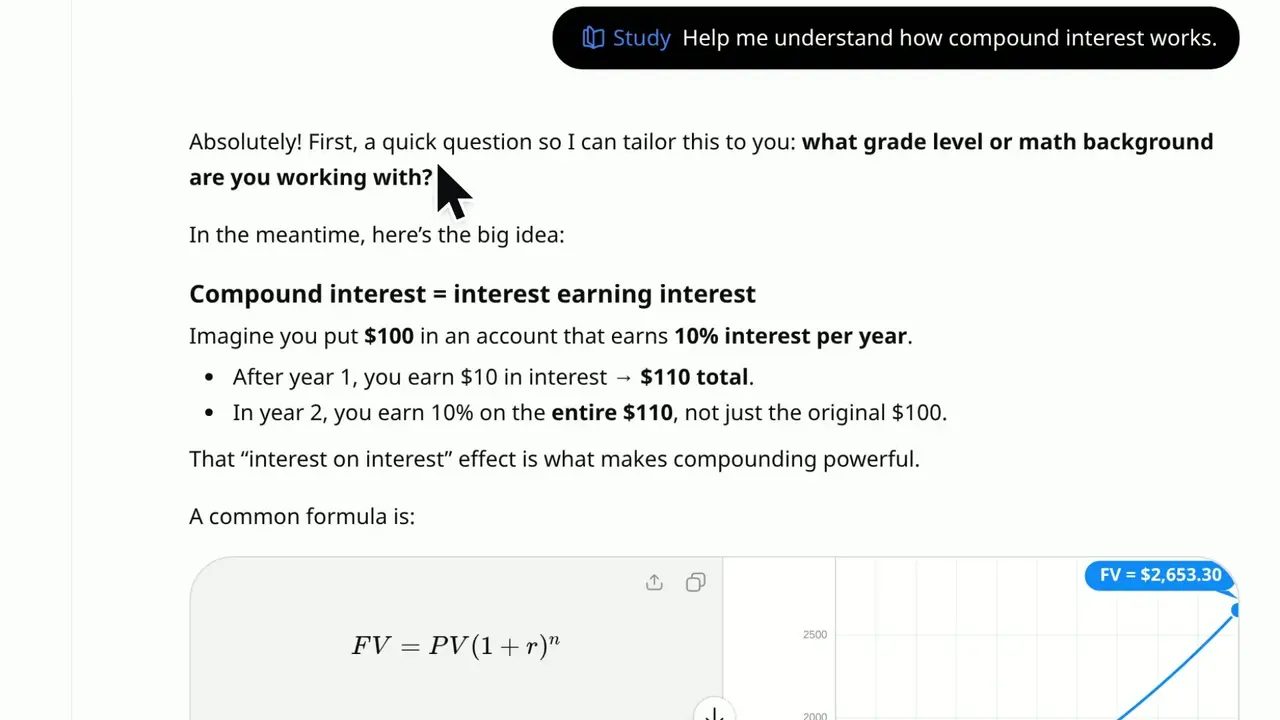
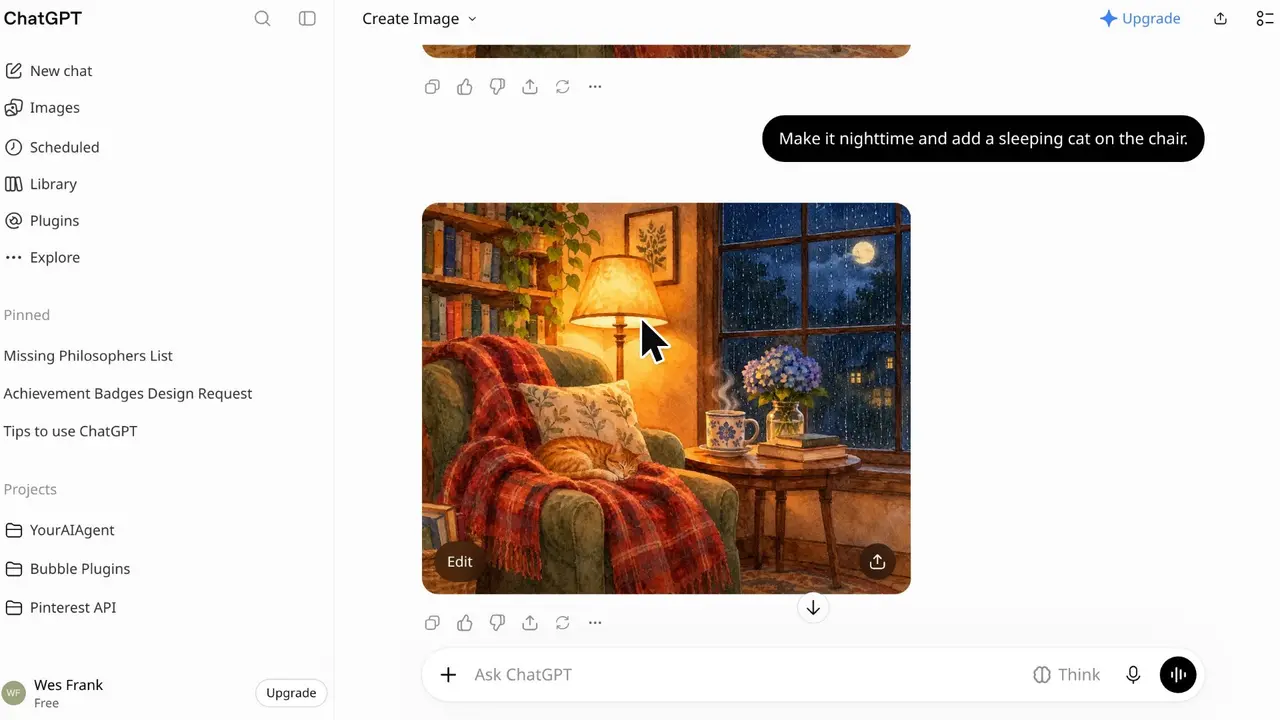
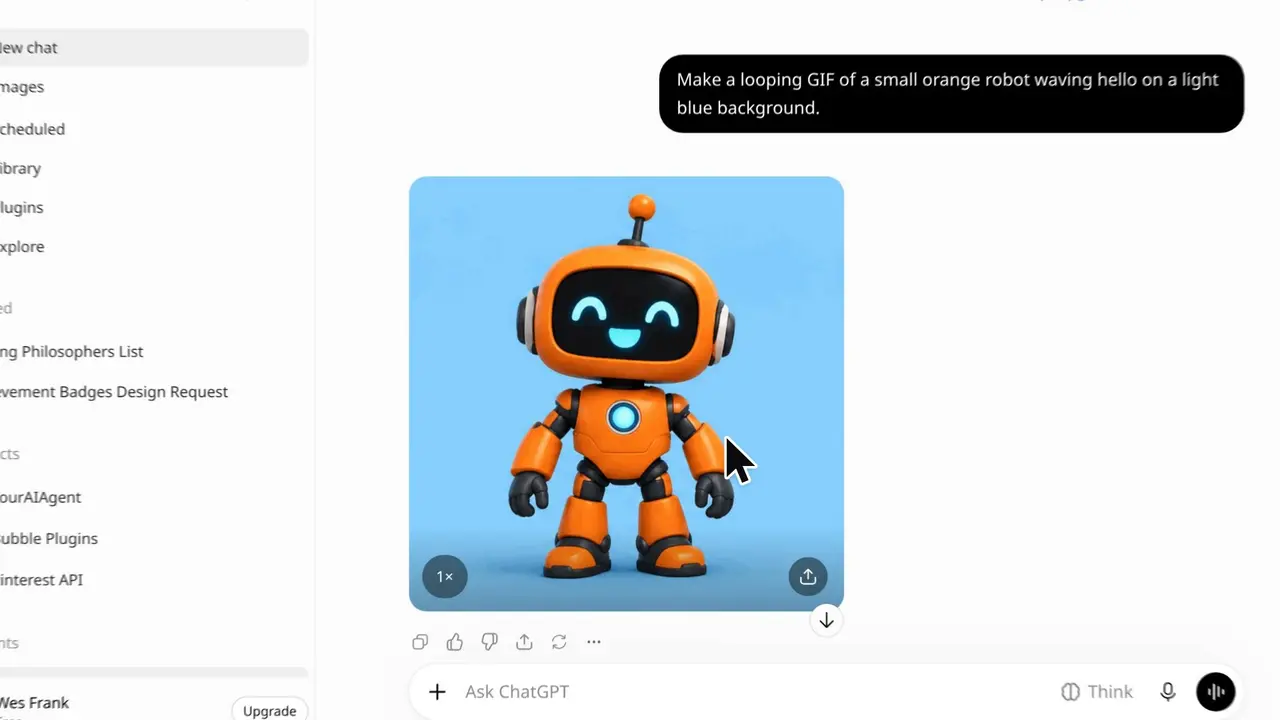
ChatGPT works like a conversation: type a request in plain words, read the answer, then refine it in the same chat. This video asks for a lunch invite, then a shorter one with a 12:30 start. It copies the invite and edits the first message to move lunch to Thursday. Then it starts a new chat, points out the plus button and reopens the first chat from Recents.
Steps
- Click New chatIt's at the top of the sidebar, and it opens an empty chat.
- Type your request in plain wordsHere: a short, friendly message inviting the team to lunch on Friday.
- Send it with the arrow, or press EnterIn a few seconds ChatGPT writes the invite, and offers to change its tone or add details.
- Ask a follow-up in the same chatHere: make it shorter and say we meet at 12:30. ChatGPT remembers the conversation, so it trims the invite and adds the time.
- Click Copy on the invite cardIt's at the card's top right. Then paste the invite into an email or your team chat.
- Scroll up and hover over your first messageA few small buttons appear under it.
- Click the pencil to edit itYour words become editable again.
- Change Friday to Thursday and click SendChatGPT answers the edited message again and replaces everything after it. The buttons under your message now include See versions.
- Click New chat for a new topicIf you're logged in, the chat you leave is saved. The plus button in the message box adds files and more.
- Find the chat under Recents and open itChatGPT names each chat for you. Click Lunch Invitation Message to pick up where you left off.
Transcript
0:00In this video you'll learn the basics of ChatGPT on the web: asking a question, following up, copying an answer, editing your message, and finding old chats.
0:12Every conversation begins with New chat at the top of the sidebar, which gives you a clean, empty page.
0:19Click into the message box and type your request in plain, everyday words, just like texting a helpful friend.
0:27When it looks right, hit the Send arrow, or simply press Enter. In a few seconds, ChatGPT writes back. Here's a ready-to-use lunch invite, plus an offer to adjust the tone or add details.
0:42You don't need to start over to change it. Just reply in the same chat: make it shorter and say we meet at twelve thirty. ChatGPT remembers the conversation, so it trims the invite and adds the twelve thirty meeting time.
0:59To use the invite, click Copy on the message card, then paste it into email or your team chat. The copy button below copies the whole reply.
1:10What if you want to reword your original request? Scroll back up to your first message. Hover over your message and a few small buttons appear underneath it.
1:21Click the pencil icon to edit the message, and your words become editable again.
1:27Let's move lunch to a different day. Double-click the word Friday to select it. Type Thursday to replace it. Click Send. ChatGPT answers the edited message fresh, and everything after it is replaced. Here's the new invite for Thursday. Your earlier version isn't lost, either: the versions button lets you flip back to it.
1:50When you're ready for a different topic, click New chat in the sidebar. Don't worry, this conversation is saved automatically. Next to the message box is the plus button. It's where you add files, like photos or documents, and turn on extra tools for your request.
2:09To get back to the lunch invite, scroll down the sidebar to Recents, where your past chats are listed, newest first. ChatGPT named our chat automatically. Click Lunch Invitation Message to open it right where you left off. And there it is, ready to pick up again. You now know how to ask ChatGPT for help, refine its answer, copy it, edit your message, and find past chats.
ChatGPT is a trademark of its owner. SayScreen isn't affiliated with, sponsored or endorsed by ChatGPT; this video shows the public app as it looked when it was recorded, and we last checked the steps on November 15, 2026. If ChatGPT has changed since, tell us at hey@sayscreen.com. ChatGPT's own guide: help.openai.com/en/articles/9125172-the-chatgpt-home-page.