Google Docs tutorial
How to make a hanging indent in Google Docs
 SayScreen
This whole video was made by AI.
Make your own at sayscreen.com
$1 for 7 days, then $49/month
- 2:12 video
- 9 steps
- Last verified November 10, 2026
A hanging indent keeps the first line of each citation at the margin and tucks the wrapped lines in, the format MLA and APA expect. This tutorial types a centered Works Cited heading and two long sample citations, then selects both and opens Format, Align & indent, Indentation options. It sets Special indent to Hanging at 0.5 inches and applies the change. The first line of each citation stays at the left margin, the rest move in half an inch, and the indent markers on the ruler split apart.
Steps
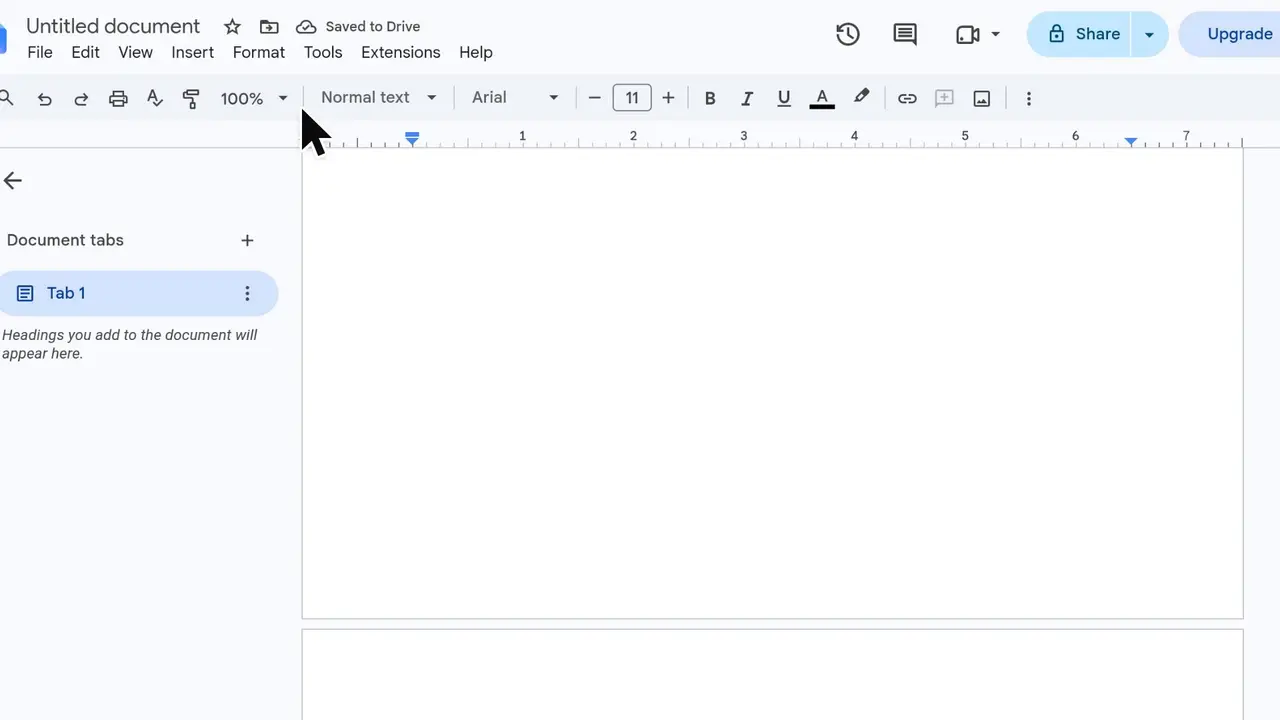
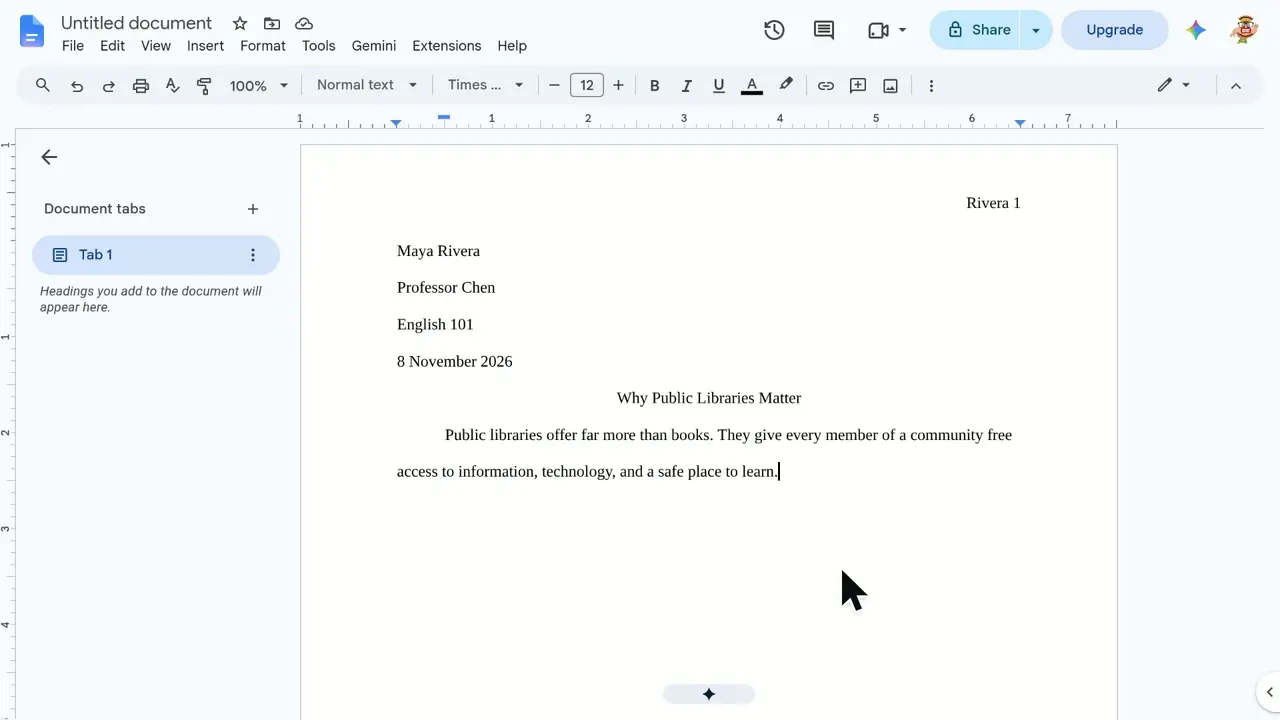
- Type the Works Cited headingStart in a new Google Doc and type Works Cited as the heading.
- Center the heading with Control+Shift+EControl+Shift+E centers the heading on the page.
- Start a left-aligned line for the citationsPress Enter for a new line. That line is still centered, so press Control+Shift+L to put the citations back at the left margin.
- Type the first citationThis tutorial types: Smith, Jordan. The Quiet Garden: Growing Food in Small Spaces Without a Backyard. Green Leaf Press, 2024. The project prompt's example citation omitted "Without a Backyard"; the longer title is what was typed, so the line wraps.
- Add a second citation in its own paragraphPress Enter, then type: Rivera, Ana. "Rooftop Harvest: How City Neighbors Turn Empty Roofs Into Shared Vegetable Farms." Urban Living Monthly, vol. 12, no. 3, 2023, pp. 44-51. Both citations still wrap back to the margin.
- Select both citationsDrag from the start of the first citation to the end of the second so the hanging indent applies to both.
- Open Format, Align & indent, Indentation optionsWith both citations selected, open the Format menu, point to Align & indent, and choose Indentation options at the bottom of the submenu. The narration says "Align and indent"; the menu label is Align & indent.
- Set Special indent to Hanging at 0.5 inchesLeave left and right at zero. Open the Special indent dropdown, choose Hanging, and set the indent to 0.5 inches, the standard for citation styles.
- Click Apply and check the resultThe first line of each citation stays at the left margin, and every line after that moves in half an inch. The indent markers on the ruler split apart to show the same setting.
Transcript
0:00A hanging indent keeps the first line of each citation at the margin and tucks the rest in, the format MLA and APA expect. Let's build a Works Cited page and set one up.
0:12Start with the heading: Works Cited.
0:16Press Control Shift E to center the heading on the page.
0:21Press Enter to start a new line for the first citation. The new line is still centered, so press Control Shift L to put citations back at the left margin.
0:32Type your first citation. This one is a book by Jordan Smith, long enough to wrap onto a second line.
0:42Press Enter so the next source becomes its own paragraph. Then add a second source, a magazine article by Ana Rivera. Right now both citations wrap straight back to the margin, which is what we want to fix.
0:58Drag from the start of the first citation to the end of the second to select them both.
1:05With both selected, open the Format menu. Point to Align and indent to open its submenu. At the bottom, choose Indentation options.
1:19Leave left and right at zero. The setting you want is Special indent, so open that dropdown. Pick Hanging. Set the indent to 0.5 inches, the standard for citation styles.
1:36Click Apply. There it is. The first line of each citation stays right at the left margin, so the author's name stands out. Every line after that moves in half an inch. You can see the same thing on the ruler, where the indent markers have split apart. That's a hanging indent: select your citations, open Indentation options, and set Hanging to half an inch.
Google Docs is a trademark of its owner. SayScreen isn't affiliated with, sponsored or endorsed by Google Docs; this video shows the public app as it looked when it was recorded, and we last checked the steps on November 10, 2026. If Google Docs has changed since, tell us at hey@sayscreen.com.