Google Forms tutorial
How to make a quiz in Google Forms
 SayScreen
This whole video was made by AI.
Make your own at sayscreen.com
$1 for 7 days, then $49/month
- 3:14 video
- 12 steps
- Last verified November 12, 2026
A quiz in Google Forms grades itself. You mark the right answer to each question and give it points, and by default students see their score and the correct answers as soon as they submit. This video turns a blank form into a three-question Solar System Quiz. It turns on Make this a quiz in Settings, fills in the question a new form starts with and adds two more, all Multiple choice, and gives each one an answer key worth 1 point. Then Preview shows the questions and their points as students will see them. Answer keys also work on Short answer, Checkboxes, Dropdown, Multiple choice grid and Checkbox grid questions, and Add answer feedback, under the choices in the answer key, adds an explanation for right or wrong answers. To keep the correct answers hidden, turn off Correct answers in Settings. To see whose answers are whose, turn on Collect email addresses under Responses in Settings. The form in this video isn’t published, so nobody can answer it yet. When yours is ready, click Publish at the top right, then Copy responder link, and send that link to students. Their answers and scores come in under Responses.
Steps
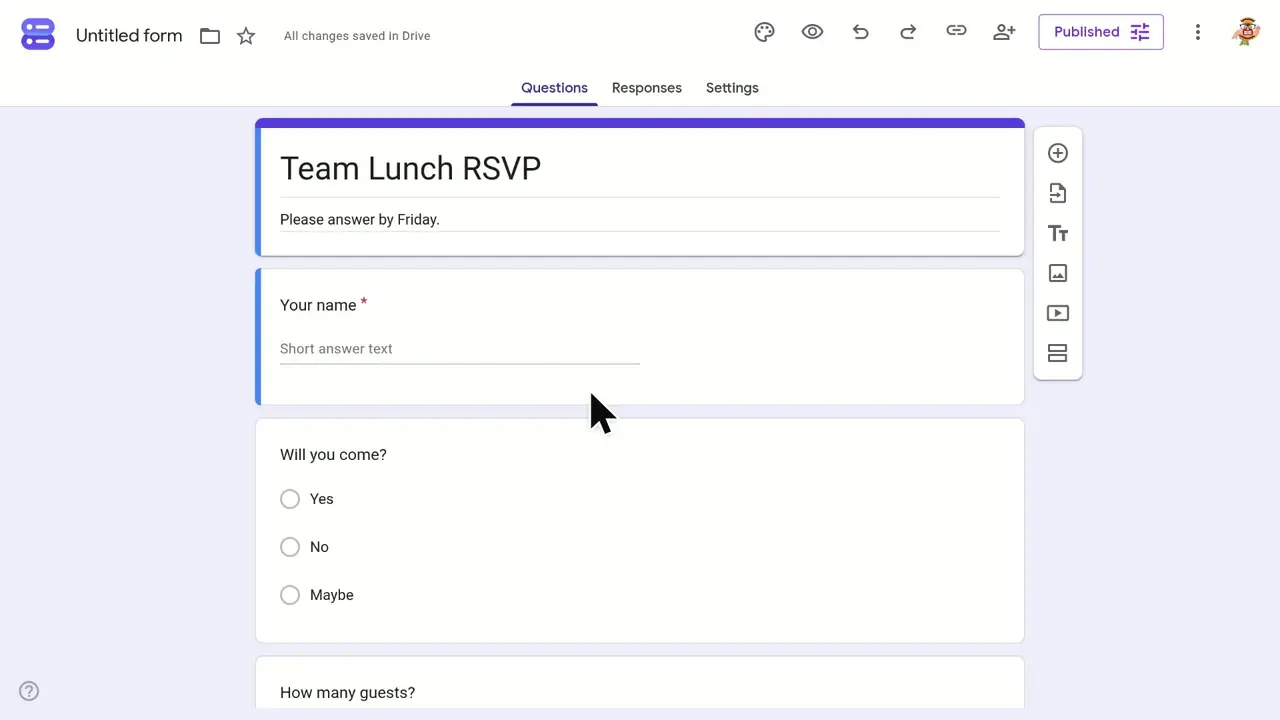
- Replace Untitled form with a titleSelect it at the top of the form and type, here Solar System Quiz.
- Click Settings and turn on Make this a quizRelease grades starts on Immediately after each submission. Later, after manual review holds grades until you release them, and turns on Collect email addresses.
- Go back to Questions and type the first questionA new form already has one Multiple choice question to start from.
- Type the answer choicesType over Option 1, then click Add option for each one after it.
- Click Answer keyIt’s at the bottom left of the question, and it only shows once the form is a quiz.
- Click the right answer and set the question’s pointsThe right answer turns green with a check mark. Points are at the top right and start at 0.
- Click DoneThe question now shows (1 point) beside Answer key.
- Click Add question, the plus buttonIt’s at the top of the toolbar beside the form. Type the next question and its choices the same way.
- Set the second answer keyClick Answer key, pick 8, give it 1 point and click Done.
- Add the third question
- Set the third answer keyMars is the right answer here. Total points at the top now reads 3.
- Click Preview, the eye iconIt shows the questions and their points as students will see them. Until you publish, it isn’t accepting responses and Submit is greyed out.
Transcript
0:00Let's turn a blank Google Form into a quiz that grades itself. We'll add three questions, set the right answers, and preview it as a student.
0:10First, give the form a clear title: Solar System Quiz.
0:16To make it a quiz, open the Settings tab. Switch on Make this a quiz. This unlocks point values, answer keys, and automatic grading. New quiz options appear. By default, grades are released right after each submission, and students can see what they missed.
0:36Head back to Questions to write the quiz. The first question is already here as multiple choice. Type: Which planet is closest to the Sun?
0:49Replace Option 1 with Mercury. Add a second option, Venus. And a third, Earth.
1:00Now tell Forms which answer is right. Click Answer key at the bottom of the question.
1:06Mercury is the closest planet, so select it as the correct answer. Then set the question's value to 1 point.
1:15Click Done to save the answer key.
1:18One question down, worth one point. Use the plus button in the floating toolbar to add the next question. It's multiple choice too. Ask: How many planets are in our solar system? The choices are 7, 8, and 9.
1:43Open the Answer key for this one as well. There are eight planets, so mark 8 as correct. Give it 1 point, and click Done.
1:55Add the third question the same way. This one asks: Which planet is called the Red Planet? Options: Mars, Jupiter, and Saturn.
2:15One last time, open the Answer key. The Red Planet is Mars. Make it worth 1 point, then click Done. All three questions are set, and the quiz is now worth three points in total.
2:32To see the quiz through a student's eyes, click Preview, the eye icon at the top. This is exactly what a student sees: each question with its choices, and the point value in the corner. The answers stay hidden until they submit. Scroll down and the Red Planet question is there too, ready to answer. You've built a self-grading quiz in Google Forms: you turned on quiz mode, added three questions, set each answer key and point, and previewed it as a student.
Google Forms is a trademark of its owner. SayScreen isn't affiliated with, sponsored or endorsed by Google Forms; this video shows the public app as it looked when it was recorded, and we last checked the steps on November 12, 2026. If Google Forms has changed since, tell us at hey@sayscreen.com. Google Forms's own guide: support.google.com/docs/answer/7032287.