Gmail tutorial
How to create folders in Gmail (labels and nested labels)
 SayScreen
This whole video was made by AI.
Make your own at sayscreen.com
$1 for 7 days, then $49/month
- 2:33 video
- 6 steps
- Last verified November 6, 2026
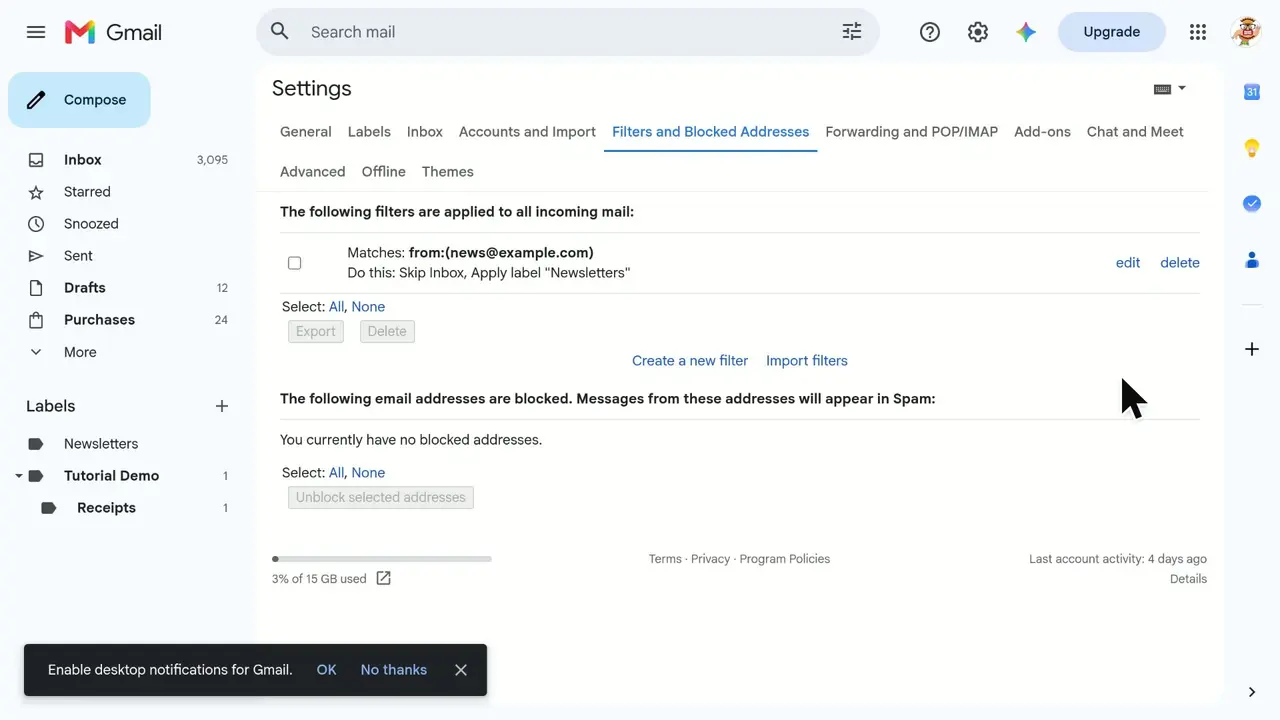
Gmail calls folders labels. On desktop, you can create a top-level label, nest another label beneath it, and use them to organize your mail. This tutorial creates Tutorial Demo with a Receipts label inside it, then uses a sample newsletter to show two different actions: applying a label keeps the message in the inbox, while Move to removes it from the inbox and files it under the chosen label. A message can have more than one label; nesting labels organizes the sidebar, rather than making each email belong to only one folder.
Steps
- Create the Tutorial Demo labelIn the left sidebar, find Labels and click the plus button. Enter Tutorial Demo, leave Nest label under unchecked, and click Create. The new top-level label appears in the sidebar.
- Nest Receipts under Tutorial DemoClick the Labels plus button again and name the label Receipts. Check Nest label under, choose Tutorial Demo from the parent list, then click Create. Receipts appears indented beneath its parent.
- Select a sample email without opening itTick the checkbox beside a message in the inbox. The tutorial uses a sample newsletter; choose a message you are comfortable organizing.
- Apply a label while keeping the email in the inboxWith the message selected, open More email options > Label as and choose Tutorial Demo. The label appears beside the subject, but the email remains in the inbox. This tags the message rather than moving it out.
- Use Move to to file it under ReceiptsKeep the email selected, click Move to and choose Tutorial Demo/Receipts. This applies the nested label and removes the message from the inbox. It does not delete the email.
- Open Receipts and check the message labelsClick Receipts in the sidebar to find the newsletter. In this example, the earlier Tutorial Demo label remains as well. One email can carry several labels; the parent label was applied separately, not automatically inherited because Receipts is nested.
Transcript
0:00Want to organize Gmail into folders? First thing to know: Gmail calls folders "labels." Let's create one, nest another inside it, and file an email there.
0:10In the left sidebar, find the Labels section and click the plus button to create a new label.
0:18Give your label a name. We'll call this one Tutorial Demo.
0:23This is a top-level label, so leave nesting unchecked and click Create. There it is in the sidebar. Tutorial Demo is now a label you can file email under, just like a folder.
0:36Next, a label inside that one, like a subfolder. Click the plus button again.
0:44Name this one Receipts.
0:47To put it inside another label, check Nest label under.
0:52Then open the parent list to choose where it goes.
0:56Pick Tutorial Demo as the parent.
0:59Click Create, and Receipts will live inside Tutorial Demo. Receipts now appears indented under Tutorial Demo, so you can see it's a nested label.
1:09Time to file an email. We'll use this Framer Monthly newsletter as our sample. Tick its checkbox to select it without opening it.
1:17To add a label, open the More menu in the toolbar.
1:21Choose Label as.
1:24Pick Tutorial Demo, and the label is applied right away. See the Tutorial Demo tag next to the subject? Applying a label just tags the email. It stays right here in your inbox, and now you can also find it under that label.
1:39To file it away like a real folder, use the Move to button while the email is still selected.
1:45Choose Tutorial Demo slash Receipts, our nested label. The newsletter is gone from the inbox. Unlike applying a label, Move to adds the label and takes the email out of your inbox. Nothing is deleted.
2:00To find it again, open the Receipts label in the sidebar. There's our newsletter, safely filed under Receipts. Notice it still carries the Tutorial Demo tag too. That's the big difference from folders: one email can have several labels at once, so it shows up under Tutorial Demo and Receipts. That's it: in Gmail, folders are labels. You created a label and a nested one, tagged an email while keeping it in your inbox, then used Move to so it lives in Receipts.
Gmail is a trademark of its owner. SayScreen isn't affiliated with, sponsored or endorsed by Gmail; this video shows the public app as it looked when it was recorded, and we last checked the steps on November 6, 2026. If Gmail has changed since, tell us at hey@sayscreen.com.