Google Docs tutorial
How to make a fillable form in Google Docs
 SayScreen
This whole video was made by AI.
Make your own at sayscreen.com
$1 for 7 days, then $49/month
- 5:32 video
- 14 steps
- Last verified November 13, 2026
Google Docs has no form fields as such, but smart chips come close: dropdowns people pick from, a date chip that opens a calendar, and checkboxes. This video builds an employee onboarding form in a two-column table, with two dropdowns, a date chip and an equipment checklist, then sets the table border to 0 pt so the grid disappears. It ends by picking the bottom border of the Full name answer cell for a fill-in line. The note at the top asks each person to save their own copy (File, Make a copy) before filling it in, so the original stays blank.
Steps
- Name the documentClick the title at the top left and type Employee Onboarding Form.
- Add a heading and a short noteChoose Heading 1 from the style menu and type Employee Onboarding Form. Under it, type: Fill in each field, then save your own copy.
- Insert a table, 2 columns by 5 rowsOpen Insert, point to Table and pick 2 x 5 in the grid: labels on the left, answers on the right.
- Type the labels in the left columnFull name, Start date, Department, Work location and Manager. The right column stays empty for the answers.
- In the Department answer cell, open Insert, Smart chips, DropdownClick the empty cell beside Department first. Skip the ready-made lists and choose New dropdown.
- Name it Department, add its options and saveReplace the placeholder options with Engineering, Design, Marketing and Operations, then click Save. The dropdown appears in the cell.
- Type @date in the Start date answer cell and pick a dayChoose Date from the list, and a calendar opens. Whoever fills in the form can click the chip to change the date.
- Type Equipment needed under the table and press Ctrl+Shift+9Ctrl+Shift+9 starts a checklist on the new line.
- Add the items and tick oneType Laptop, Monitor and Headset, one per line. Click a box to check it: Laptop is ticked and struck through.
- Add a dropdown to the Work location answer cellClick the cell, then Insert, Smart chips, Dropdown. Your Department list is saved for reuse, but this field needs different choices, so choose New dropdown.
- Name it Work location, add Office, Remote and Hybrid, and saveDelete the leftover fourth option with its trash icon before you click Save.
- Right-click the table and choose Table optionsIt's near the bottom of the menu. Older versions of Docs call it Table properties.
- Set the table border to 0 ptExpand Color, open the border width (1 pt) and choose 0 pt. The grid lines disappear, so the table reads like a form.
- Pick only the bottom border of the Full name answer cellClick inside the cell, click the small arrow in its corner and choose the bottom border. The video stops here: to draw the fill-in line, set the border width in the toolbar to 1 pt.
Transcript
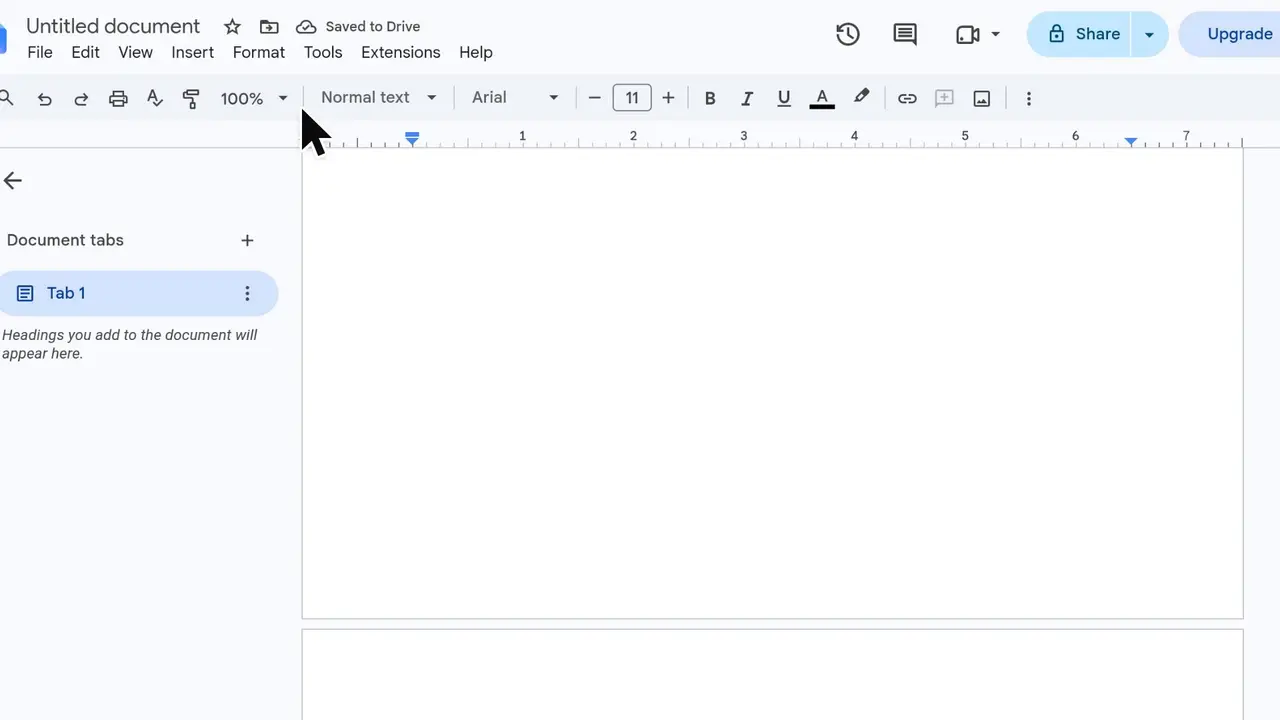
0:00Let's turn a blank Google Doc into a fillable onboarding form, with dropdowns, a date picker and a checklist, and no add-ons needed.
0:08First, give the file a clear name: Employee Onboarding Form.
0:21In the page, open the style menu so the title stands out as a real heading. Choose Heading 1. Type the heading, Employee Onboarding Form. Underneath, add a short instruction: Fill in each field, then save your own copy.
0:51The form fields will live in a table, so open the Insert menu. Point to Table to bring up the size grid. Pick two columns by five rows: labels on the left, answers on the right.
1:07Fill the left column with the field labels, starting with Full name. Click the next cell down for Start date, then Department, Work location, and Manager. The right column stays empty for the answers.
1:28Time for the smart parts. Click into the Department answer cell; instead of free typing, people will pick from a list. Open Insert again. In this version of Docs, Dropdown sits under Smart chips. Choose Dropdown. Skip the presets and choose New dropdown to build your own list.
1:57Name the dropdown Department, so you can reuse it later. Replace the placeholder options: Engineering, Design, Marketing, and Operations. Hit Save, and the dropdown drops right into the cell.
2:31For Start date, click the answer cell and type at-date to call up the date chip. Pick the Date smart chip. Whoever fills this in can click it and choose a day from a calendar. The calendar pops up right away. Choose a sample start date; anyone can click the chip later to change it.
2:49There's your date chip. Below the table, add a section called Equipment needed. On the new line, press Control Shift 9 to start a checklist.
3:06Add the items: Laptop, Monitor, and Headset. Each box is clickable. Tick Laptop and it's checked off and struck through.
3:30Now Work location gets its own dropdown. Click inside its answer cell. Same path as before: Insert, Smart chips, then Dropdown. Your Department list is saved here for reuse, but this field needs different choices, so pick New dropdown.
4:02Name this one Work location. The options are Office, Remote, and Hybrid. Only three choices are needed here, so remove the leftover fourth option with its trash icon. Save it.
4:34Next, hide the grid so it reads like a real form. Right-click anywhere in the table. Scroll to the bottom of the menu, where the table options live. In this version, Table properties is called Table options.
4:50The table border settings sit in the Color section. Expand it. Open the border width, currently one point. Choose zero points, and watch the grid lines disappear.
5:04Much cleaner. Now give Full name a fill-in line. Click inside its answer cell. That little arrow in the cell's corner lets you pick individual borders. Click it. Choose just the bottom border. And that's a fillable onboarding form built in plain Google Docs: a clean layout with dropdowns, a date chip and a checklist, and no add-ons.
Google Docs is a trademark of its owner. SayScreen isn't affiliated with, sponsored or endorsed by Google Docs; this video shows the public app as it looked when it was recorded, and we last checked the steps on November 13, 2026. If Google Docs has changed since, tell us at hey@sayscreen.com. Google Docs's own guide: support.google.com/docs/answer/10710316.