Google Docs tutorial
How to make a table of contents in Google Docs
 SayScreen
This whole video was made by AI.
Make your own at sayscreen.com
$1 for 7 days, then $49/month
- 3:38 video
- 11 steps
- Last verified November 13, 2026
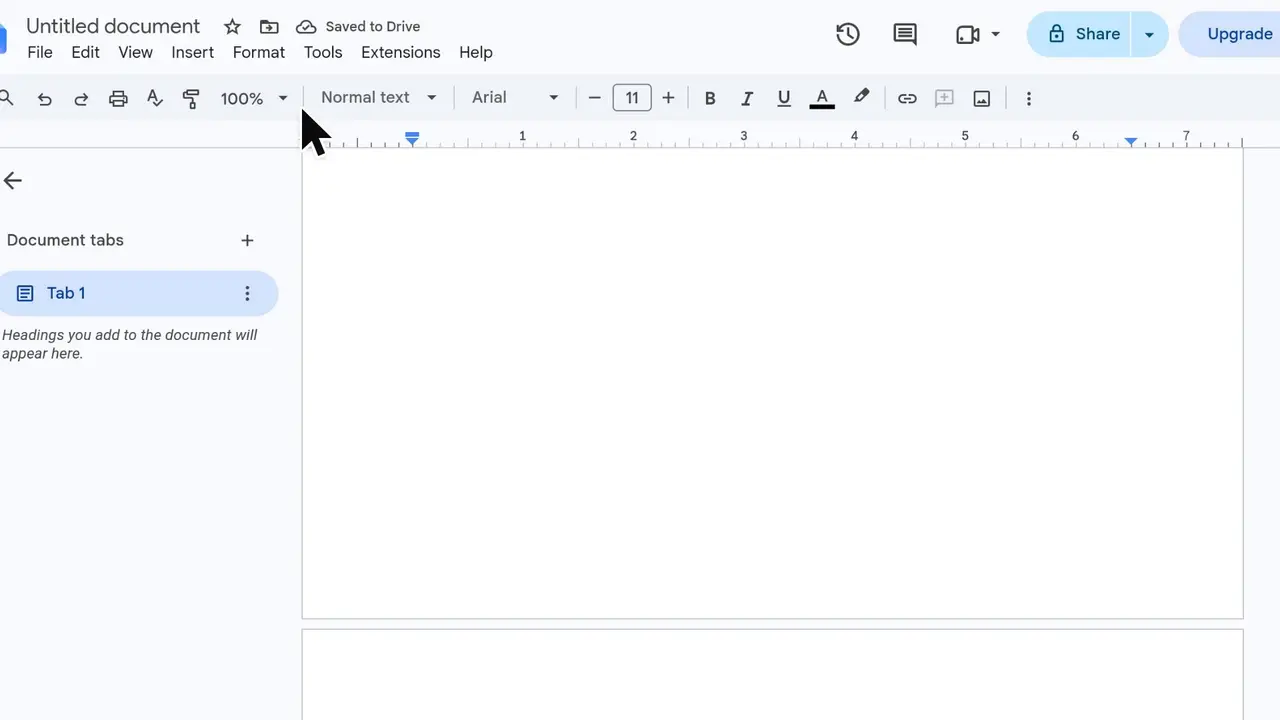
Google Docs builds a table of contents from your headings, so most of the work is giving each section title a heading style, Heading 1 here. This video types three short sections, each on its own page, and turns their titles into headings. Then it inserts a table of contents with page numbers from Insert, Page elements, renames a heading and refreshes the table so it matches.
Steps
- Press Ctrl+Enter to keep the first page for the tableA page break at the very start moves you to page 2 and leaves page 1 empty for the table of contents.
- Type the first heading and a sentence under itType Introduction, then one sentence on the next line.
- Make it a Heading 1Click in the Introduction line, open the style menu that says Normal text, and choose Heading 1. The table of contents is built from headings like this.
- Press Ctrl+Enter to start a new page
- Choose Heading 1 first, then type Our PlanPick Heading 1 from the style menu before you type, and the heading takes that style. Add one sentence under it.
- Add the last page: Next StepsPress Ctrl+Enter, choose Heading 1, type Next Steps and a sentence. All three headings now show in the Document tabs panel on the left.
- Click at the very top of the documentScroll back to the empty first page and click at the top, where the table should go.
- Open Insert, Page elements, Table of contents
- Choose Plain Text, the first styleThe first two styles show page numbers, the second with dotted lines. The blue one has no page numbers. Every heading appears with the page it starts on, and each entry links to its heading.
- Rename a heading: Our Plan to Our Launch PlanClick Our Plan in the panel on the left to jump to it, double-click Plan and type Launch Plan.
- Click the table, then the refresh button on its leftScroll back up to the table: the panel on the left changed at once, but the table still says Our Plan. Click inside the table and click the refresh button to its left, and it reads Our Launch Plan.
Transcript
0:00In this video, you'll build a table of contents in Google Docs, one that links to every heading, shows page numbers, and updates with one click.
0:10First, let's save the opening page for the table itself. Press Control plus Enter to add a page break, which moves you onto page two.
0:20Type the first heading, Introduction. Under it, add one sentence: this guide explains how our new product launch will work.
0:33To make Introduction a real heading, click anywhere in that line first. Then open the style menu that says Normal text. Choose Heading 1. The table of contents is built from headings like this one. Click at the end of the sentence to get back to where you left off.
0:52Press Control plus Enter so the next heading starts on a fresh page.
0:57This time, a quicker route: open the style menu before you type. Pick Heading 1, and whatever you type next takes that style. Type the second heading, Our Plan, and press Enter. The next line switches back to Normal text on its own, so just add the sentence: we will launch the product in three simple phases.
1:24Another Control plus Enter starts the last page. Open the style menu once more. Choose Heading 1 for the final section. Type Next Steps, then press Enter. And finish the page with: each team will share an update by Friday. All three headings now show up in the outline on the left. That's a good sign the table of contents will find them too.
1:55Now scroll all the way back up to the empty first page. Click at the very top of the document to place your cursor where the table should go.
2:05Open the Insert menu. The table of contents lives under Page elements. Point to Table of contents to see the styles on offer.
2:15The blue style shows links only, so pick the first one, with plain text and page numbers. There it is: every heading listed in order, with the page it starts on. Each entry is also a link that jumps straight to that section.
2:31Next, let's change a heading. Click Our Plan in the outline to jump to that page. Double-click the word Plan to select it. Type Launch Plan over it, so the heading now reads Our Launch Plan.
2:47The outline updates right away, but the table of contents doesn't. Scroll back up to see. It still says Our Plan. Click inside the table of contents to bring up its controls. A link card pops up, but the button you want is on the left. Click the refresh button to update the table of contents. The table now reads Our Launch Plan, still on page three. Whenever you edit headings, one click on refresh brings it up to date. So that's it: set your headings to Heading 1, insert a table of contents from the Insert menu, and refresh it after every change.
Google Docs is a trademark of its owner. SayScreen isn't affiliated with, sponsored or endorsed by Google Docs; this video shows the public app as it looked when it was recorded, and we last checked the steps on November 13, 2026. If Google Docs has changed since, tell us at hey@sayscreen.com. Google Docs's own guide: support.google.com/docs/answer/116338.