Google Docs tutorial
How to strikethrough text in Google Docs
 SayScreen
This whole video was made by AI.
Make your own at sayscreen.com
$1 for 7 days, then $49/month
- 1:54 video
- 10 steps
- Last verified November 16, 2026
Strikethrough draws a line through text, the usual way to cross a finished item off a list without deleting it. This tutorial types a short to-do list in a new Google Doc and crosses out the first item from the menus: Format, Text, Strikethrough. It crosses out the second with the keyboard shortcut, Alt+Shift+5, which is Command+Shift+X on a Mac. Then it removes the line from an item by choosing Strikethrough a second time, puts it back with the shortcut, and ends on the list with two items crossed out.
Steps
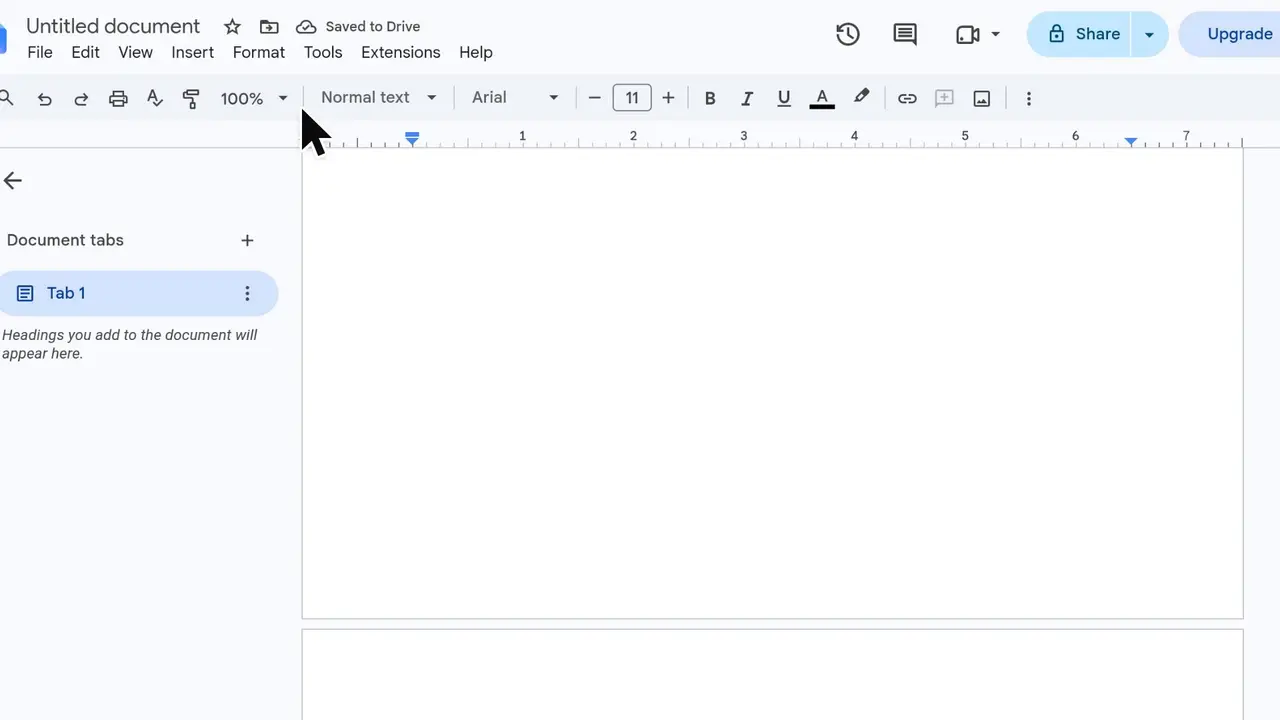
- Type a title and a short listIn a new Google Doc, type Weekend To-Do, then four tasks on their own lines: Buy groceries, Call the bank, Clean the garage and Book flights.
- Select the text to cross outDrag across Buy groceries so the whole line is highlighted.
- Open Format and point to TextClick Format in the menu bar, then point to Text to open its submenu.
- Choose StrikethroughA line goes through Buy groceries. The menu lists the shortcut beside Strikethrough: Alt+Shift+5.
- Select the next itemDrag across Call the bank.
- Press Alt+Shift+5The shortcut crosses out the selected text without opening a menu. On a Mac, press Command+Shift+X.
- Select a crossed-out item to remove the lineTo remove a strikethrough, first select the crossed-out text, here Buy groceries.
- Choose Format, Text, Strikethrough againChoosing Strikethrough on text that is already crossed out turns it off, and the line disappears.
- Press the shortcut to cross it out againWith Buy groceries still selected, Alt+Shift+5 puts the line back.
- Click away to see the finished listBuy groceries and Call the bank are crossed out. Clean the garage and Book flights are still to do.
Transcript
0:00Strikethrough draws a line through text, which is perfect for crossing things off a list. Let's build a quick to-do list in a new Google Doc and cross off a couple of items.
0:11Start with a title at the top of the page: Weekend To-Do. Under it, add four quick tasks: buy groceries, call the bank, clean the garage, and book flights.
0:25Say you've finished the shopping. Drag across Buy groceries to select the whole line.
0:31Open the Format menu in the menu bar. Point to Text to open the text styling options.
0:39Choose Strikethrough. Notice the shortcut listed beside it, we'll use that next.
0:45Buy groceries is crossed off. Next, select Call the bank, and this time we'll use the keyboard.
0:53Press Alt, Shift, and 5 together. On a Mac, the shortcut is Command, Shift, X.
1:00Crossed something off by mistake? Removing the line is just as easy. Select a crossed-out item, like Buy groceries.
1:12Head back to Format. Then open Text again. Choosing Strikethrough a second time toggles it off.
1:20The line is gone. Since the shopping really is done, press the shortcut once more to cross it back off.
1:28Click away to clear the selection and see the finished list. That's strikethrough in Google Docs: use Format, Text, Strikethrough or the keyboard shortcut to cross items off, and choose it again to remove the line.
Google Docs is a trademark of its owner. SayScreen isn't affiliated with, sponsored or endorsed by Google Docs; this video shows the public app as it looked when it was recorded, and we last checked the steps on November 16, 2026. If Google Docs has changed since, tell us at hey@sayscreen.com. Google Docs's own guide: support.google.com/docs/answer/1663349.